How to take a deposit on a booking
Once deposits are switched on, every booking and stay gets a small Deposit section. Taking one is always your choice, and the amount is always yours to change. This guide walks through adding a deposit and reading its status.
Open the booking or stay
Find the walk, day care or pet sitting booking on the calendar or on the client's page and open it.
For a boarding stay, open the stay from the calendar, the client, or the boarding list.
Find the Deposit section
On a service booking, the Deposit section sits just under the summary at the top.
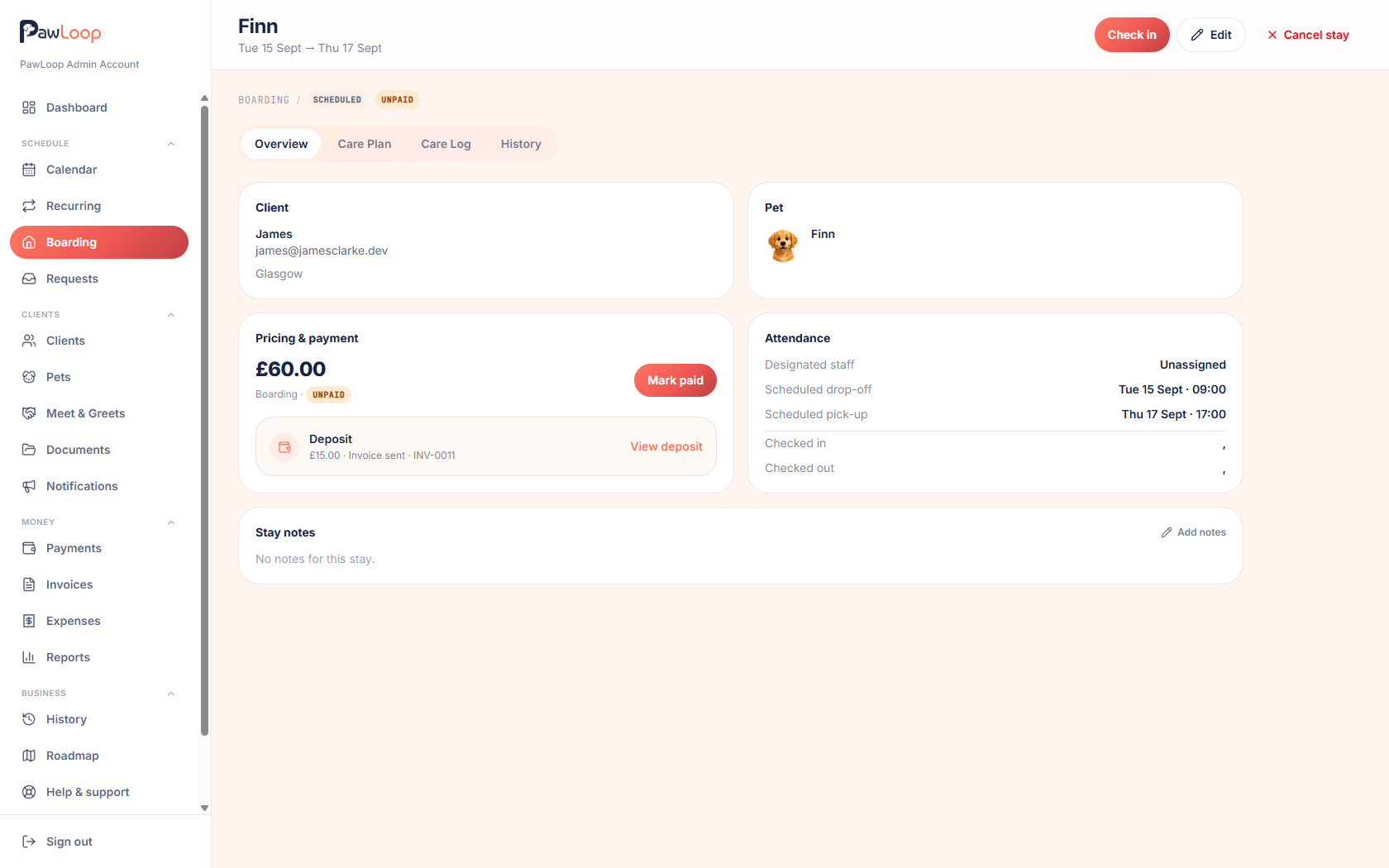
On a boarding stay, it sits inside Pricing and payment.
If you can't see it, deposits either aren't switched on in Settings → Business → Features, or your role doesn't include seeing money.
Click Take a deposit
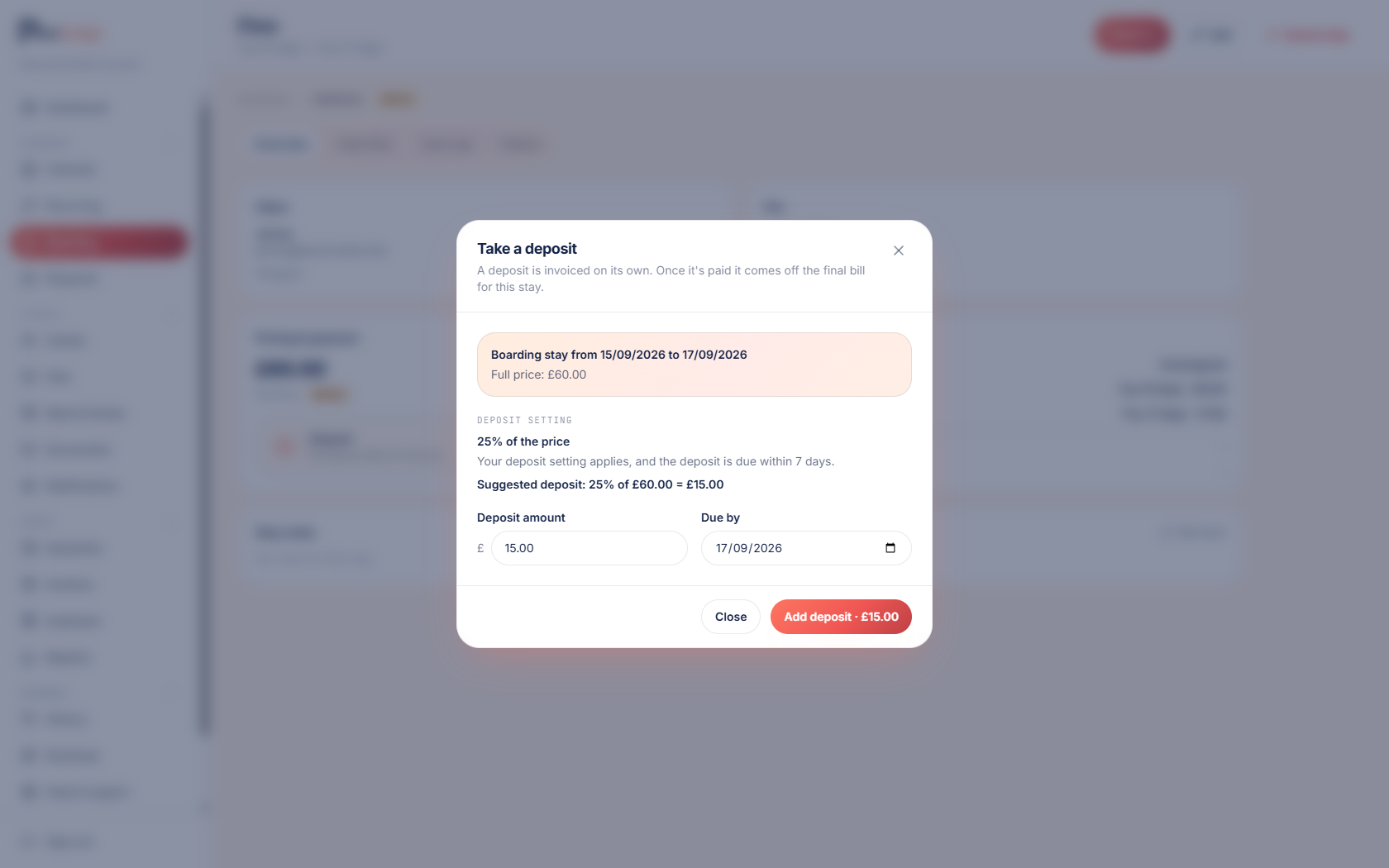
A small window opens showing the deposit setting it has matched, for example 25% of the price, along with the amount that works out to.
If you have no deposit setting saved, the amount starts at zero and you simply type the figure you want.
Adjust the amount and due date
The suggested amount is only a starting point. Change it to whatever you have agreed with the client.
The due date is filled in from your payment window, counted from today. You can change that too if you have agreed something different.
Save the deposit
Click Save. The Deposit section on the booking now shows the amount and its status, which starts as no invoice yet.
Nothing is sent to the client at this point. The deposit is recorded against the booking, ready for you to invoice when you want to.
Review or change it later
Open the booking again and click View deposit to see the amount, the due date and the invoice status.
You can change the amount or remove the deposit while no invoice has been raised for it. Once an invoice exists, deal with the invoice itself rather than the deposit. If that invoice is voided, the deposit unlocks again so you can raise a fresh one.
Try it yourself
Everything in this guide is included from the free Starter plan upwards. Set up in minutes. No card required.
Create free account. No card required →Frequently asked questions
Related guides
Create your free PawLoop account today.
Sign up in minutes and try every feature free. PawLoop starts with a 14-day free trial. Every feature included and no payment card required to sign up. Choose a plan when your trial ends.
Start free trialNo spam. No card. Just a free pass to try PawLoop.