How to turn on and set up deposits
Deposits let you take part of the price up front on a booking or a boarding stay. They are completely optional, you decide booking by booking whether to take one. This guide shows you how to switch deposits on and set the amounts you want suggested.
Switch deposits on for your business
Go to Settings in the sidebar, choose the Business tab, then open Features.
Turn Deposits on. Until it is on, nothing about deposits appears anywhere in PawLoop.
If you don't see the Deposits switch, the feature hasn't been released to your account yet. Get in touch and we can turn it on for you.
Open the deposit settings
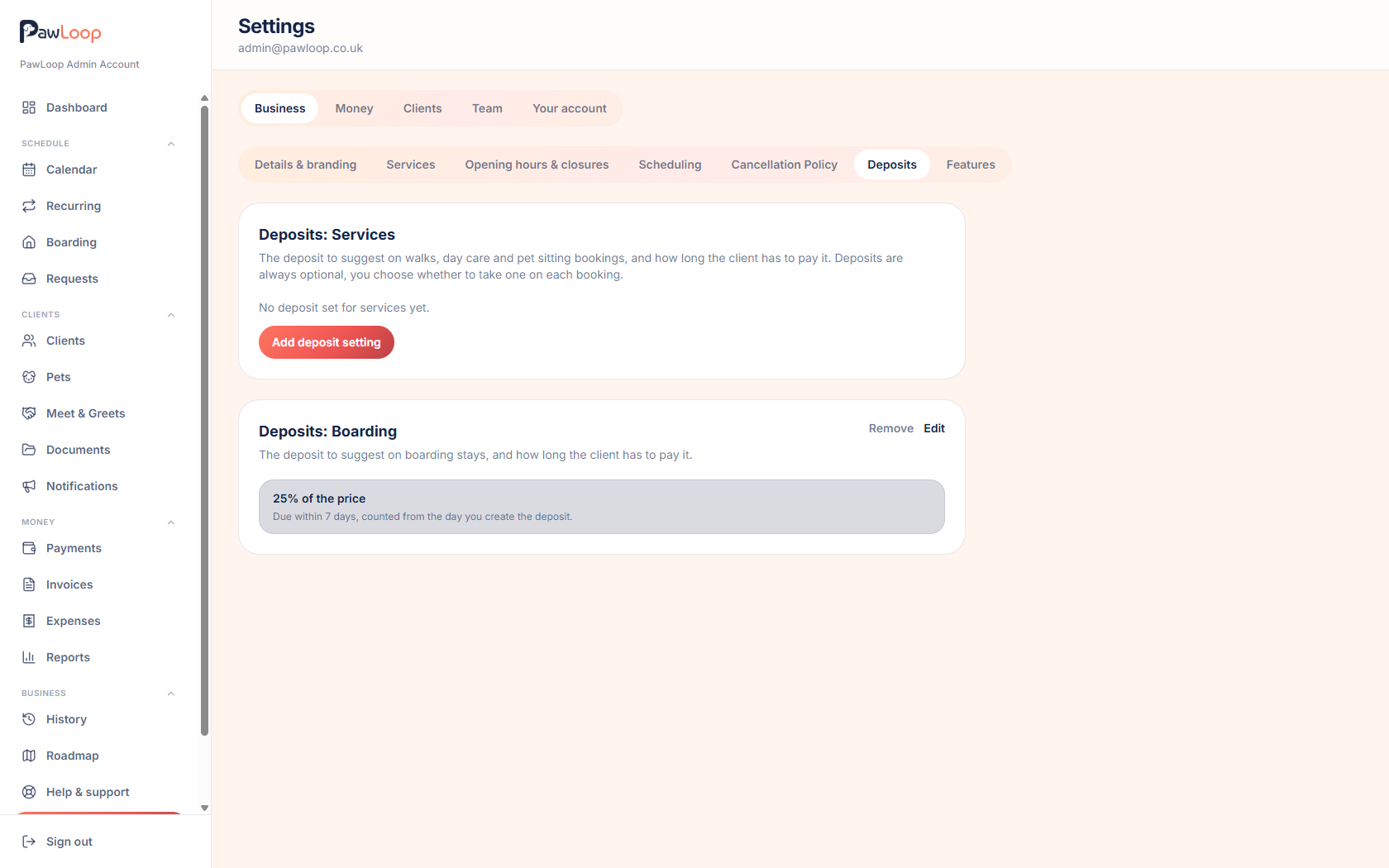
Still in Settings → Business, you'll now see two sections: Deposits: Services and Deposits: Boarding.
Services covers walks, day care and pet sitting bookings. Boarding covers overnight stays. Each one keeps its own setting, so you can ask for a bigger deposit on a stay than on a walk.
Add your first deposit setting
Nothing is set up to begin with, you'll see "No deposit set for services yet". Click Add deposit setting to create one.
Choose whether the deposit is a percentage of the booking price or a fixed amount, then enter the figure.
- Percentage of the price, for example 25% of whatever the booking costs.
- Fixed amount, for example £30.00 no matter what the booking costs.
Set how long the client has to pay
Enter how many days the deposit is due within. This is counted from the day you create the deposit, not from the date of the booking.
So if you set 7 days and create a deposit today, the invoice is due a week from today and is flagged as overdue after that.
Set it to 0 if you want the deposit due straight away.
Save it, then repeat for boarding
Click Save. The section now shows a short summary of your setting, with Edit and Remove next to it.
Do the same in the Boarding section if you want to take deposits on stays as well.
Change or remove it later
Click Edit to change the amount or the payment window, or Remove to stop suggesting a deposit altogether.
Deposits you have already taken are not affected. They keep the amount and due date they were created with, along with any invoice attached to them.
Try it yourself
Everything in this guide is included from the free Starter plan upwards. Set up in minutes. No card required.
Create free account. No card required →Frequently asked questions
Related guides
Create your free PawLoop account today.
Sign up in minutes and try every feature free. PawLoop starts with a 14-day free trial. Every feature included and no payment card required to sign up. Choose a plan when your trial ends.
Start free trialNo spam. No card. Just a free pass to try PawLoop.