How to invoice a deposit and deduct it from the final bill
A deposit is only money once it's invoiced and paid. This guide covers raising a deposit invoice, keeping track of it in Payments, and what happens to the deposit when you come to bill the booking itself.
Raise the invoice from the booking
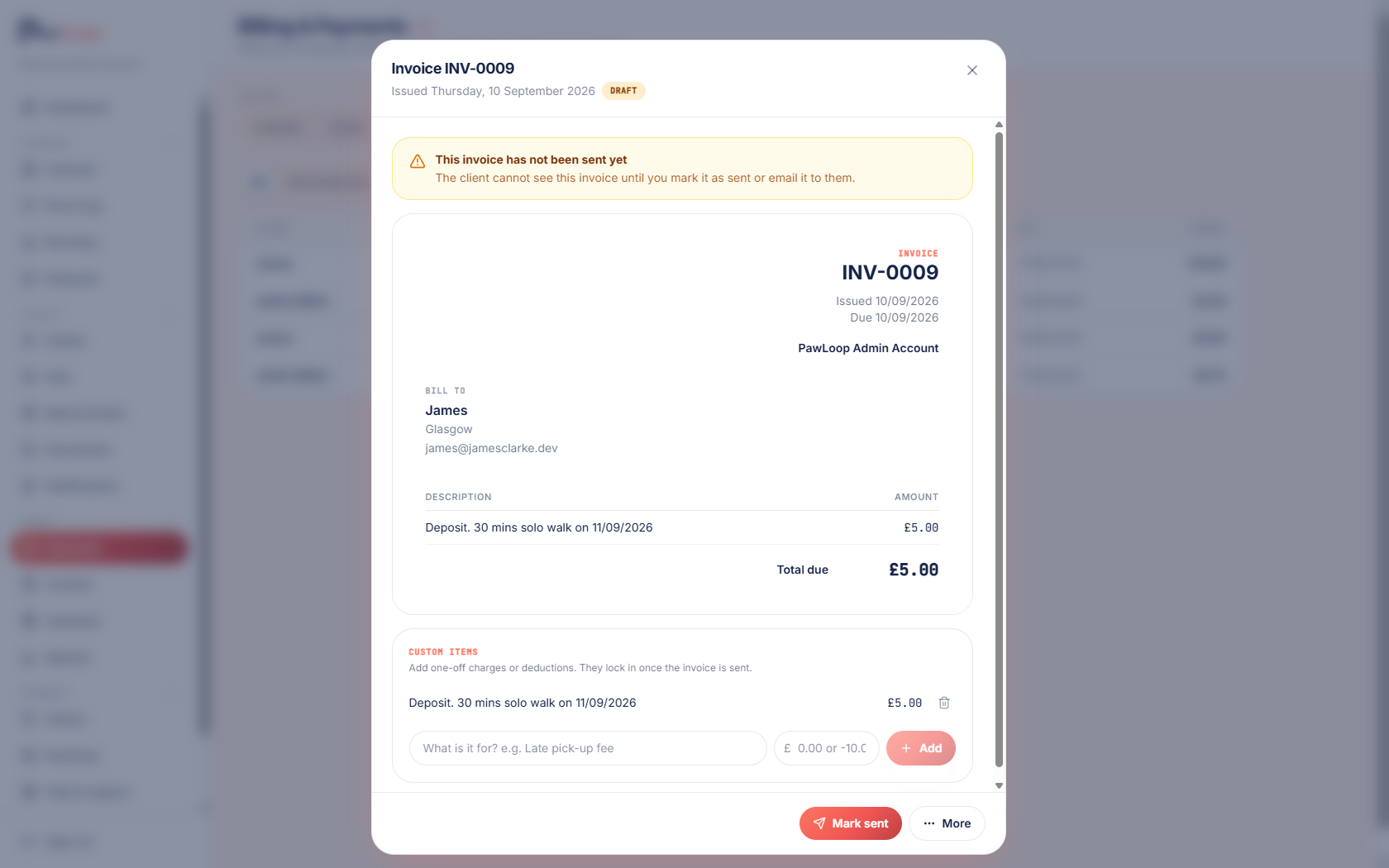
Open the booking or stay, click View deposit in the Deposit section, then click Generate invoice.
An invoice is created with a single line for the deposit and nothing else, and it opens straight away so you can send or download it.
Or raise it from Payments
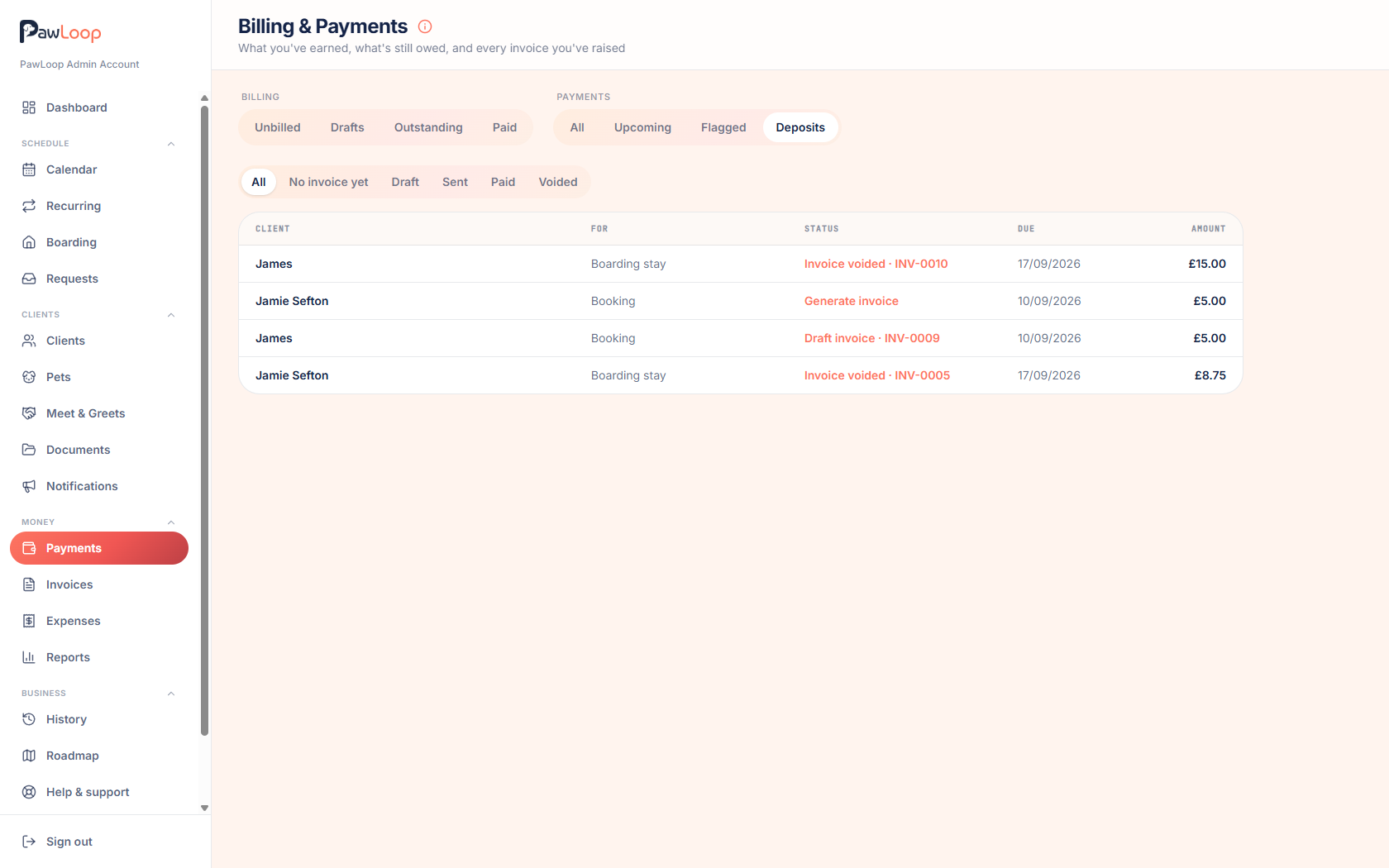
Go to Payments and open the Deposits tab. Every deposit you've taken is listed here, whatever stage it's at.
Any deposit without an invoice yet has a Generate invoice action next to it, so you can work through them in one place.
Move the invoice through its stages
A deposit invoice behaves exactly like any other invoice. Send it, share it, and mark it as paid when the money lands.
Marking it as paid is the important step, that's what makes the deposit count against the booking later.
Track deposits in Payments
The Deposits tab has filters across the top so you can see just what you need.
- No invoice yet, deposits you've agreed but not yet billed.
- Draft and Sent, invoices raised but not yet paid.
- Paid, deposits that will be deducted from the final bill.
- Voided, deposit invoices you've cancelled. These can be invoiced again.
Watch the status on the booking
The Deposit section on the booking always shows where things stand: no invoice yet to begin with, then the invoice status once one exists, along with the invoice number.
Invoice the booking as normal
When it's time to bill the work itself, create the invoice the way you always do, from unbilled work, a one-off invoice, or automatic billing.
The booking is listed at its normal full price, exactly as if there were no deposit.
See the deposit deducted
If the deposit invoice has been marked as paid, the final invoice shows the full price and then a separate deduction line for the deposit already paid, so the client only owes the balance.
If the deposit invoice has not been paid, no deduction is applied and the booking is billed in full. Mark the deposit invoice as paid before creating the final invoice if you want it taken off.
Try it yourself
Everything in this guide is included from the free Starter plan upwards. Set up in minutes. No card required.
Create free account. No card required →Frequently asked questions
Related guides
Create your free PawLoop account today.
Sign up in minutes and try every feature free. PawLoop starts with a 14-day free trial. Every feature included and no payment card required to sign up. Choose a plan when your trial ends.
Start free trialNo spam. No card. Just a free pass to try PawLoop.