How to set up online payments
Online Payments adds a Pay by card button to the invoices you send. Payments are handled by Stripe, our secure payment partner, and land in a payment account that belongs to your business. PawLoop takes no cut. Setting up is a one-time job that takes around ten minutes.
Open Online Payments
In the sidebar, under Money, choose Online Payments. Before you are set up, the page shows a step-by-step guide of everything you are about to do.
You need to be the business owner to set this up, because Stripe needs details about the business and the person who runs it.
Start the setup
Choose Set up your business at the bottom of the page. This opens Stripe's secure onboarding, where you enter your details directly with them. You do not need an existing Stripe account, and you never enter these details into PawLoop.
Tell Stripe about your business
You will be asked what type of business you are (most dog walkers are a sole trader), your trading address and contact details.
When it asks for an industry, choose Other personal services if you are unsure which one fits. Dog walking does not have its own category, and this is the right general fit.
Describe what your business does
Stripe asks for a website so it can see what you sell. If you do not have one, use the option to enter a short description instead.
A sentence is enough, for example: dog walking, daycare and home boarding for local clients, invoiced after each week of walks.
Confirm who runs the business
Stripe is required by law to check who is behind the account. You confirm your name, date of birth and home address, and may be asked to upload photo ID.
This is standard for anyone taking card payments and is handled entirely by Stripe.
Add your bank account
Enter the sort code and account number for the business bank account you want your payouts paid into. This is the account the money will land in after each payment.
Wait for approval, then switch card payments on
Stripe reviews your details. It is usually quick, sometimes instant, and occasionally they will ask for one more document.
Once you are approved, come back to Online Payments and tick Let clients pay by card. The page now has tabs for Card payments, Set up and How it works.
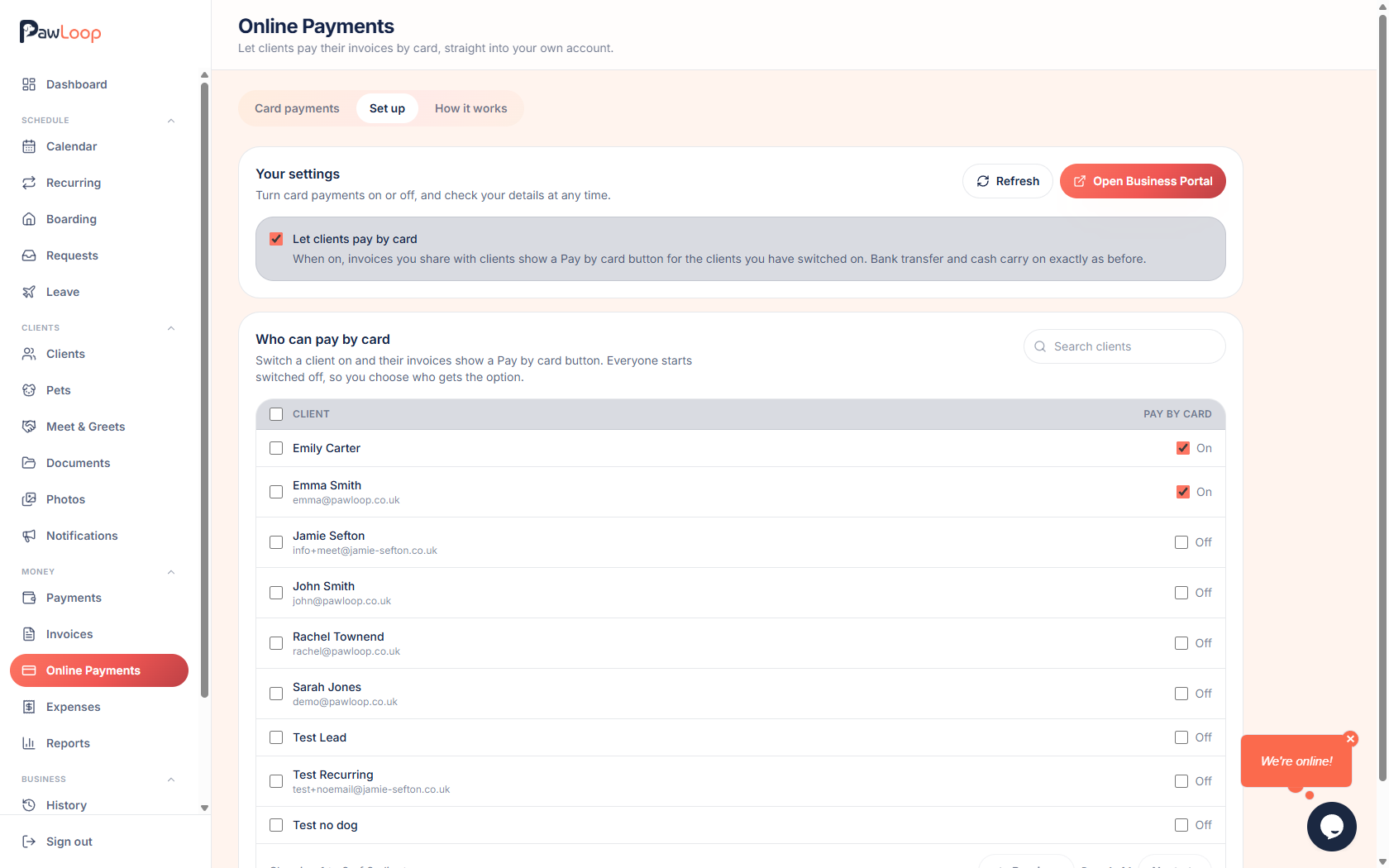
Choose which clients can pay by card
Every client starts switched off, so nothing changes for anyone until you say so. Scroll down the Set up tab to Who can pay by card and switch clients on as you wish.
Try it yourself
Everything in this guide is included from the free Starter plan upwards. Set up in minutes. No card required.
Start free. No card required →Frequently asked questions
Related guides
Create your free PawLoop account today.
Sign up in minutes and try every feature free. PawLoop starts with a 14-day free trial. Every feature included and no payment card required to sign up. Choose a plan when your trial ends.
Start free trialNo spam. No card. Just a free pass to try PawLoop.