How to choose which clients can pay online
Card payments are controlled client by client, so you decide exactly who gets the option. Everyone starts switched off, which means nothing changes for any client until you choose it.
Open Who can pay by card
Go to Money, Online Payments, Set up, and scroll to Who can pay by card. Every client is listed with an On or Off switch.
If the switches are greyed out, the master Let clients pay by card switch above is off. Turn that on first.
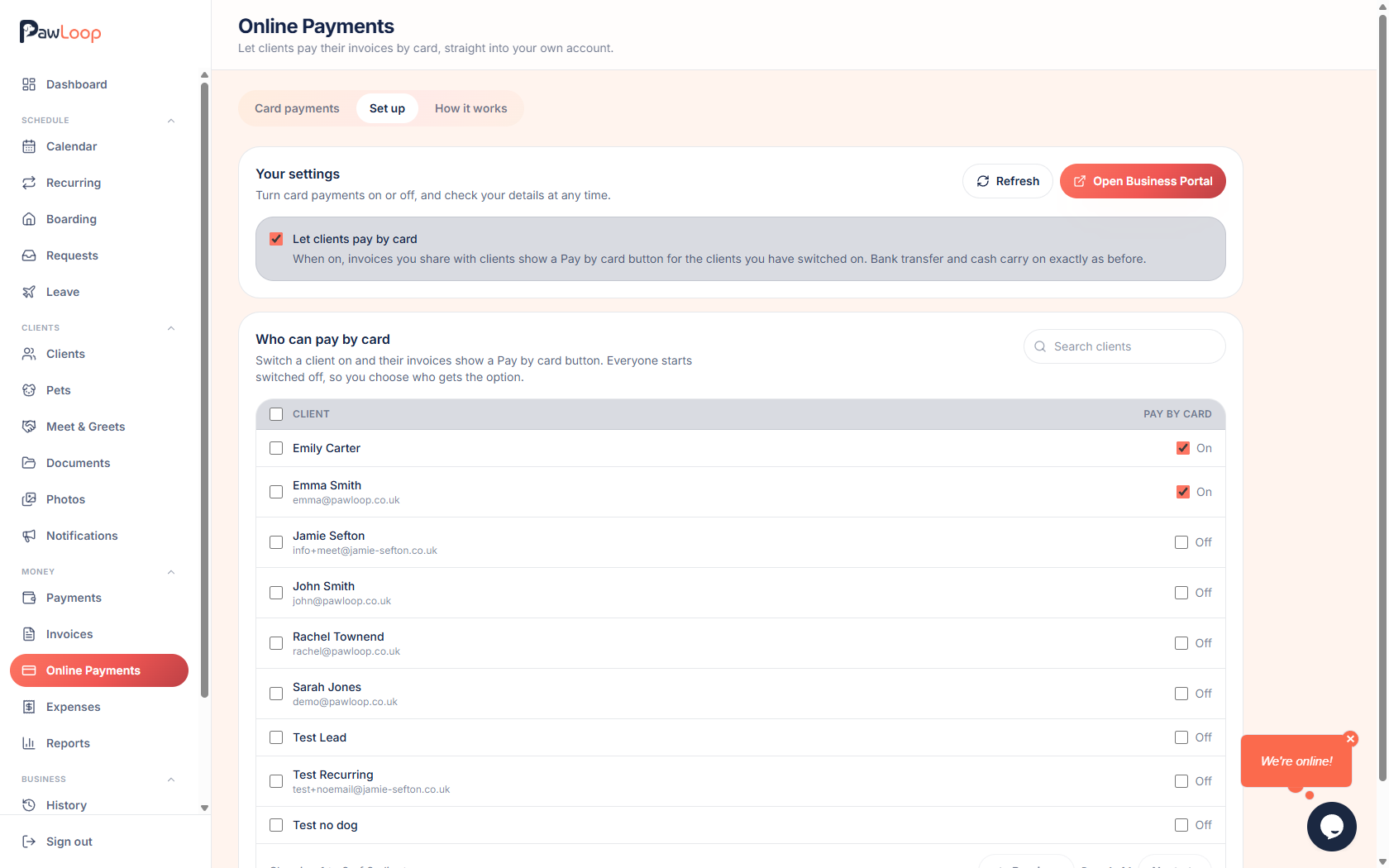
Switch a single client on
Click the switch beside a client and it saves immediately. Their next invoice, and any invoice of theirs already shared, shows a Pay by card button.
Change several clients at once
Tick the boxes beside the clients you want, or the box in the header to select the whole page, then choose Turn on or Turn off.
Use the search box to narrow the list first if you are looking for a particular household.
Use the switch on a client profile
Open a client, go to their Invoices tab, and the same Can pay invoices by card switch sits above their invoice list. It is the same setting, just in the place you are already working.
Turning a client off again
Switch a client off and their invoices stop showing the card option straight away. Payments they have already made are unaffected and stay on your Card payments list.
Try it yourself
Everything in this guide is included from the free Starter plan upwards. Set up in minutes. No card required.
Start free. No card required →Frequently asked questions
Related guides
Create your free PawLoop account today.
Sign up in minutes and try every feature free. PawLoop starts with a 14-day free trial. Every feature included and no payment card required to sign up. Choose a plan when your trial ends.
Start free trialNo spam. No card. Just a free pass to try PawLoop.