How to open your payment portal from PawLoop
Your payments are handled by Stripe, and you get your own secure portal for that side of things. It is where your balance, payouts, bank details and reports live. You open it from PawLoop, so there is no extra account to remember.
Go to Money, Online Payments
Open Online Payments in the sidebar under Money, then choose the Set up tab.
Choose Open Business Portal
The Open Business Portal button sits in the Your settings card. It opens your portal in a new tab, signed in to your own account.
Only the business owner sees this button, because the portal holds bank and identity details.
Confirm the six-digit code
Stripe may ask you to confirm it is you. It sends a six-digit code to the email address or mobile number on the account, and you enter that to continue. This happens from time to time for security.
Find your way around
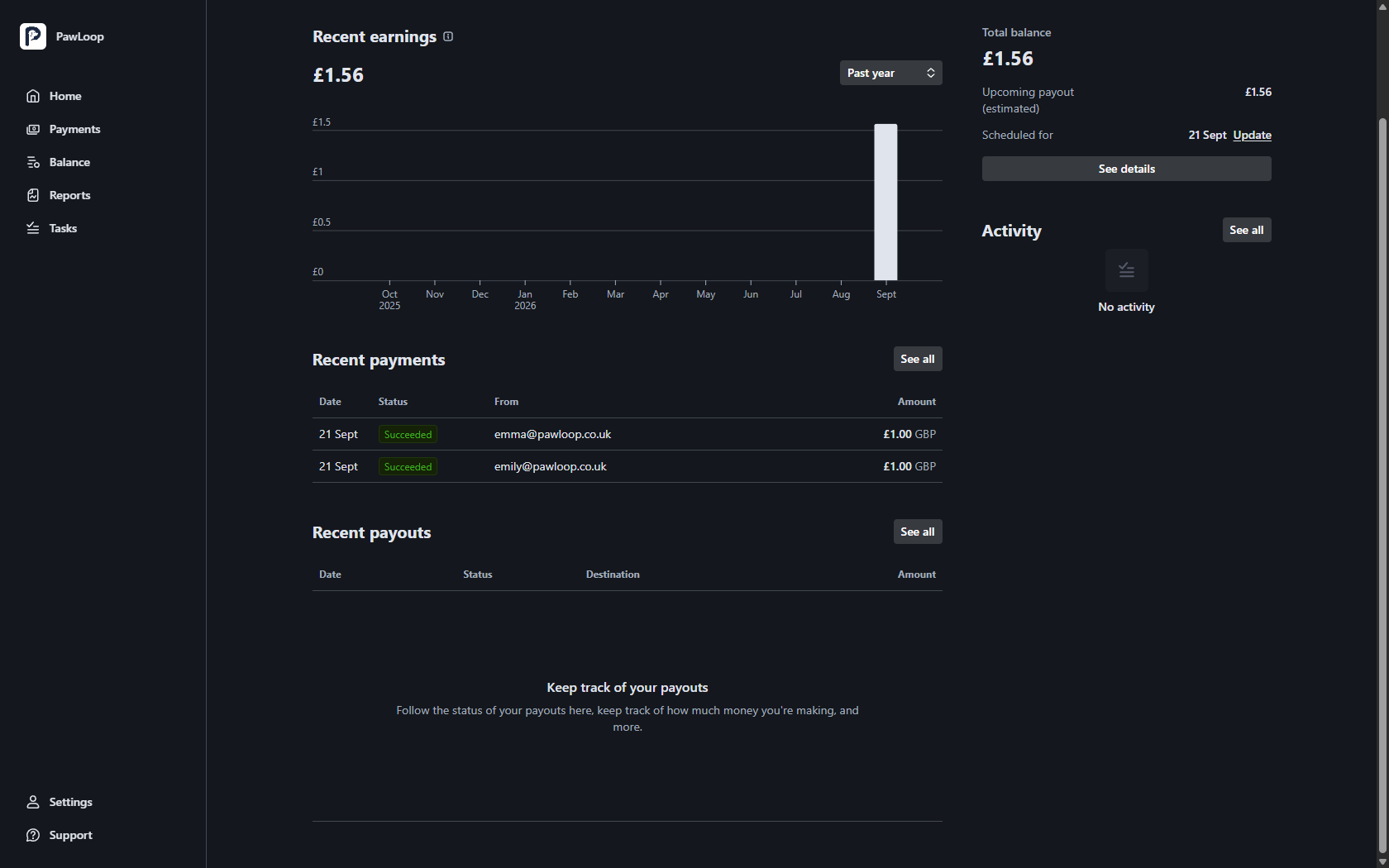
The portal opens on Home, with your recent earnings, recent payments and recent payouts, and your balance and next payout on the right.
Know what to do where
Use the portal for anything about the money itself: payouts, bank details, refunds, reports and verification tasks.
Use PawLoop for everything else: clients, invoices, what was paid for and your business records. PawLoop stays the reference for who owes what.
Try it yourself
Everything in this guide is included from the free Starter plan upwards. Set up in minutes. No card required.
Start free. No card required →Frequently asked questions
Related guides
Create your free PawLoop account today.
Sign up in minutes and try every feature free. PawLoop starts with a 14-day free trial. Every feature included and no payment card required to sign up. Choose a plan when your trial ends.
Start free trialNo spam. No card. Just a free pass to try PawLoop.