How to invite clients to the portal
Once your client portal is switched on, you can invite individual clients so they can sign in to see their walks, boarding, pets, invoices and documents.
Open Client access
Go to Settings, then the Clients tab, and make sure you're on the Client access sub-tab. This lists every client and their current portal status.
Check the client has an email address
The Invite button is only available for clients with an email on file. If a client shows "No email on file", add their email address on their client record first.
Send the invite
Find the client in the list and select Invite. They'll receive an email so they can set up their portal login.
Each client's row shows whether they're Not invited, Invited, or Joined, along with when they last accessed the portal.
Resend an invite if needed
If a client hasn't joined yet, the same button shows as Resend invite. Select it to send the email again.
Preview their portal
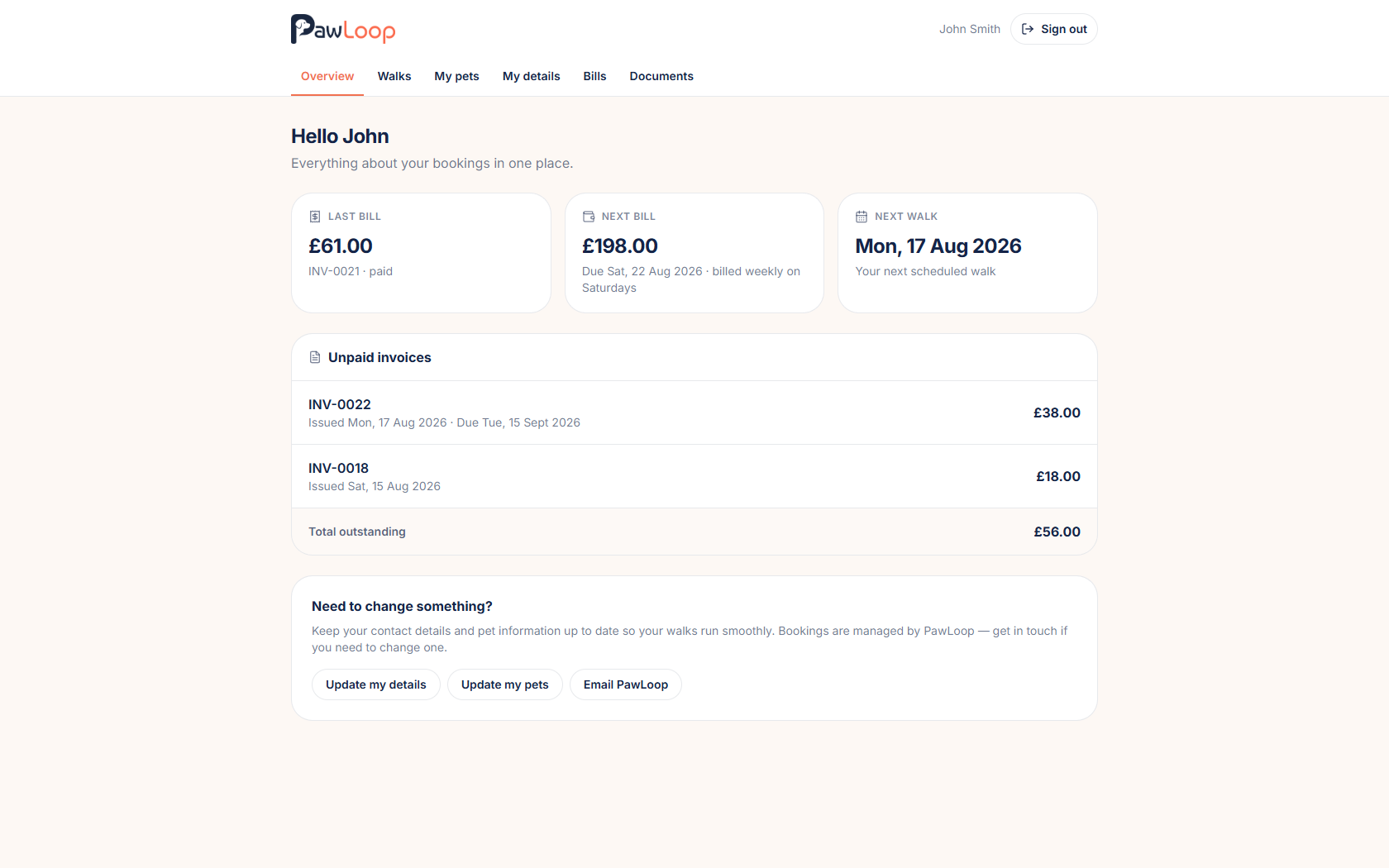
Once a client shows as Joined, select Log in as next to their name to open their portal exactly as they see it. Useful for checking everything looks right before they ask questions.
Remove portal access if needed
To take away a client's access, select Remove next to their name. This is available for anyone who has been invited or has joined.
Try it yourself
Everything in this guide is included from the free Starter plan upwards. Set up in minutes. No card required.
Create free account. No card required →Frequently asked questions
Related guides
Create your free PawLoop account today.
Sign up in minutes and try every feature free. PawLoop starts with a 14-day free trial. Every feature included and no payment card required to sign up. Choose a plan when your trial ends.
Start free trialNo spam. No card. Just a free pass to try PawLoop.