How to add a pet
Pets belong to a client, so make sure the client exists first. Here's how to add a pet and its profile details.
Open the Pets page
In the sidebar, select Pets to see every pet across all your clients.
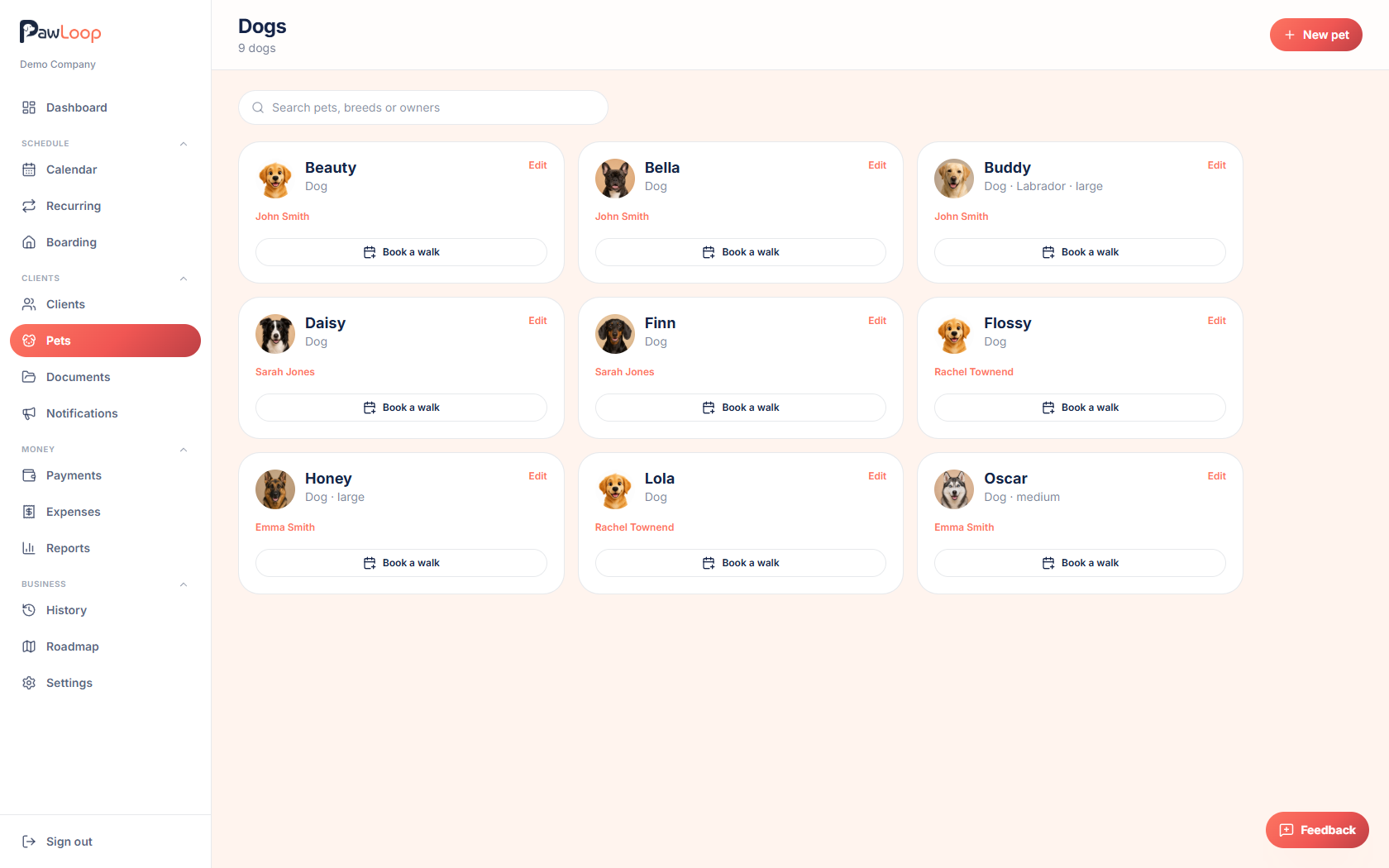
Select New pet
Click New pet near the top right. This opens the New pet form.
You can also add a pet directly from a client's profile by clicking Add pet, the owner will already be locked in.
Add a photo (optional)
Click Add photo to upload a picture. PNG, JPG or WEBP files up to 50MB are supported.
Choose the owner and animal type
Select the client who owns this pet, then choose the animal type, dog, cat, rabbit and more are all supported.
Fill in the pet's details
Add the pet's name, breed, size, date of birth, gender and weight. Only the name is required.
Add care notes
Use behaviour notes for recall, reactivity or how they are with other animals.
Add medical notes, feeding notes and walk preferences too. These stay internal, clients never see them in the client portal.
Save the pet
Click Save pet. It now appears on both the Pets page and the owner's client profile.
Try it yourself
Everything in this guide is included from the free Starter plan upwards. Set up in minutes. No card required.
Create free account. No card required →Frequently asked questions
Related guides
Create your free PawLoop account today.
Sign up in minutes and try every feature free. PawLoop starts with a 14-day free trial. Every feature included and no payment card required to sign up. Choose a plan when your trial ends.
Start free trialNo spam. No card. Just a free pass to try PawLoop.