How to send your terms to clients
Once you have published a version of your terms, you can send it to your clients. Clients can agree in the client portal or through a secure link, so nobody needs an account.
Open the client status list
Go to Settings, Business, Terms & Conditions, then the Client status tab. It shows every client and whether they have agreed.
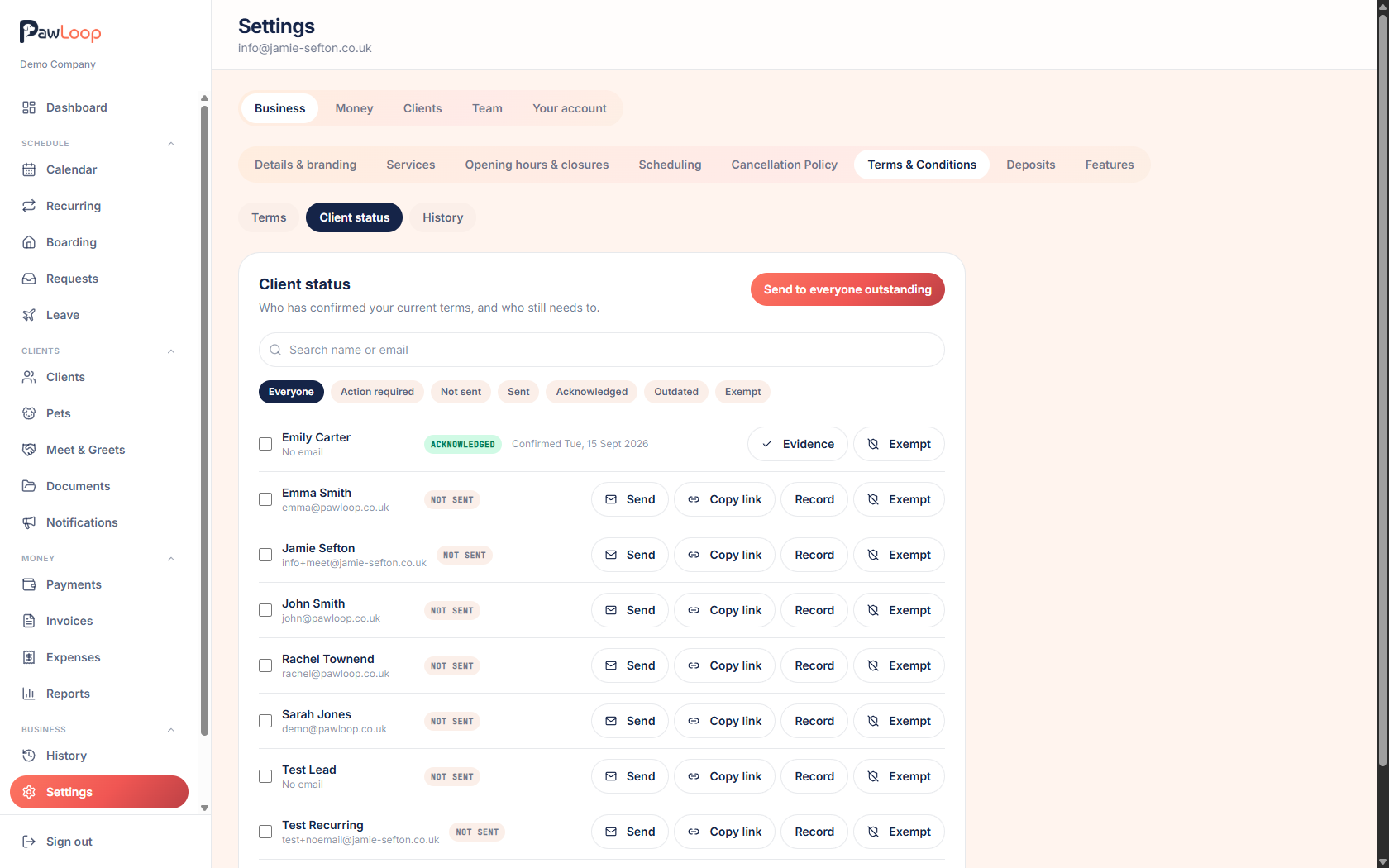
Send to everyone outstanding
Send to everyone outstanding emails your current terms to every client who has not agreed yet. Clients who have already agreed to the current version are skipped, so nobody gets a pointless email.
Send to one client
Use Send on a client's row to email just that person. If you have sent before, the button reads Send again.
You can also send from a client's profile, in the terms section on their overview.
Copy a secure link instead
Copy link gives you a private web address for that client. Send it by text, WhatsApp or however you normally talk to them. It opens a branded page where they can read and agree without logging in.
Links are personal to the client, so do not post one publicly or send the same link to two people.
Check what clients receive
The email comes from your business, with your name and branding, a short explanation and a button to read and agree. Clients with portal access are taken to your portal, and everyone else uses the secure link.
Try it yourself
Everything in this guide is included from the free Starter plan upwards. Set up in minutes. No card required.
Create free account. No card required →Frequently asked questions
Related guides
Create your free PawLoop account today.
Sign up in minutes and try every feature free. PawLoop starts with a 14-day free trial. Every feature included and no payment card required to sign up. Choose a plan when your trial ends.
Start free trialNo spam. No card. Just a free pass to try PawLoop.