How to record whether an invoice was paid by bank transfer or cash
When you mark an invoice as paid, PawLoop asks how the money came in. Choosing bank transfer or cash keeps your records straight and feeds the payment breakdown in your reports.
Open your outstanding invoices
Go to Payments in the sidebar and choose Outstanding, then the Invoices view. This is everything you have sent that has not been paid yet.
Mark several invoices at once
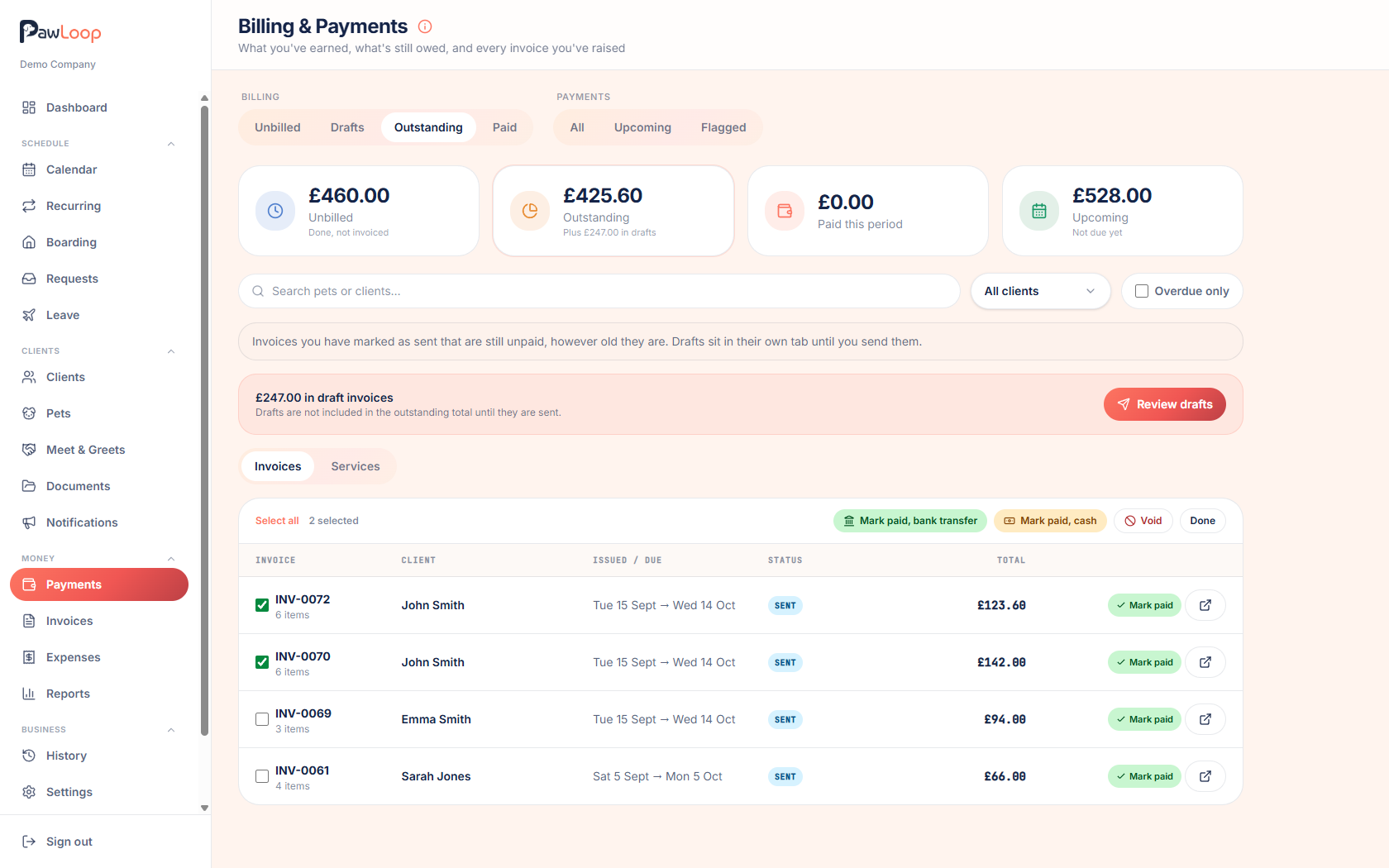
Click Select invoices, tick the ones that have been paid, then choose Mark paid, bank transfer or Mark paid, cash. Every invoice you picked is updated in one go.
Select all picks up the whole list, and Done leaves selection mode without changing anything.
Mark a single invoice from the list
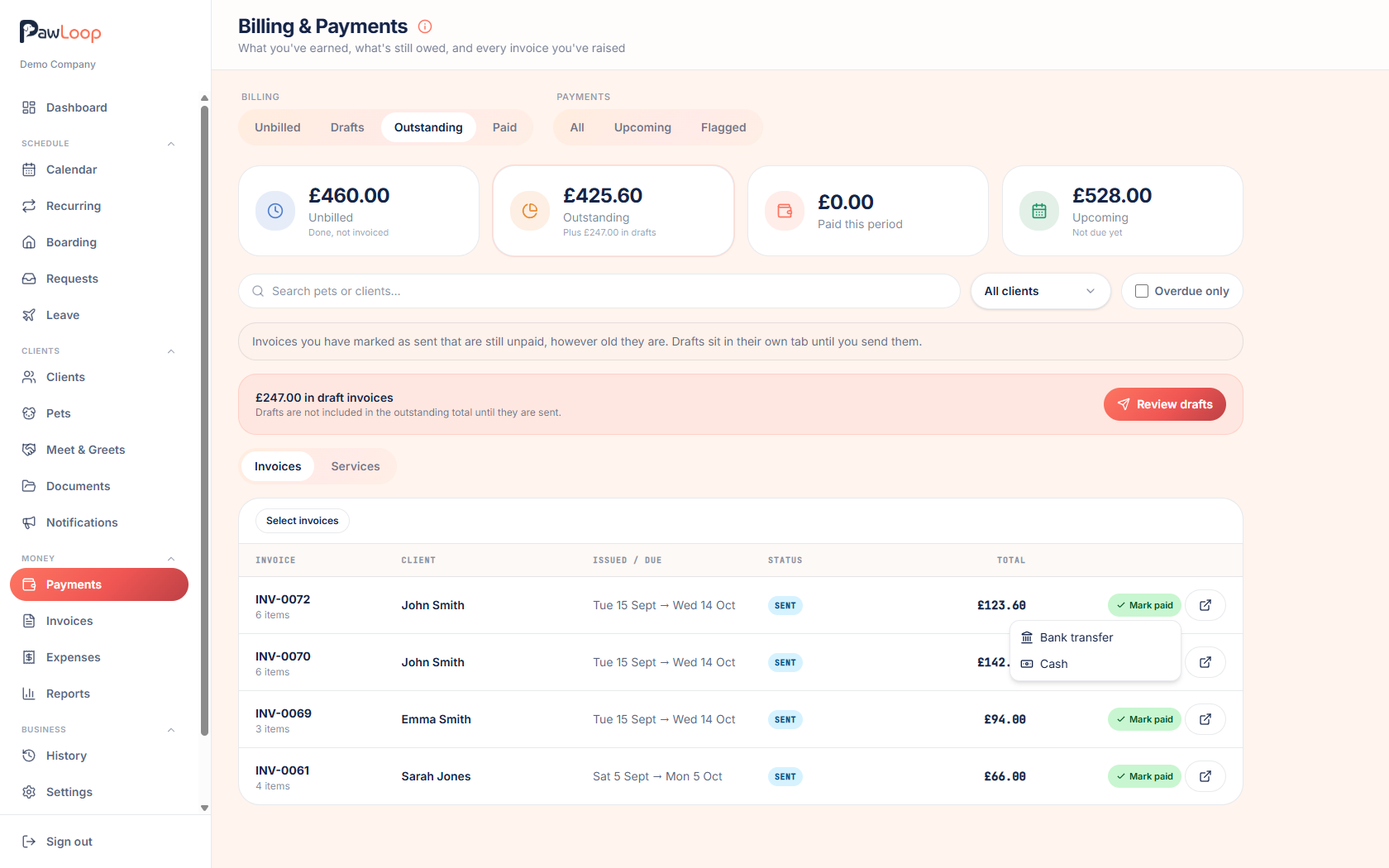
For one invoice, click Mark paid on its row and pick Bank transfer or Cash. No need to open the invoice.
Mark it paid from inside the invoice
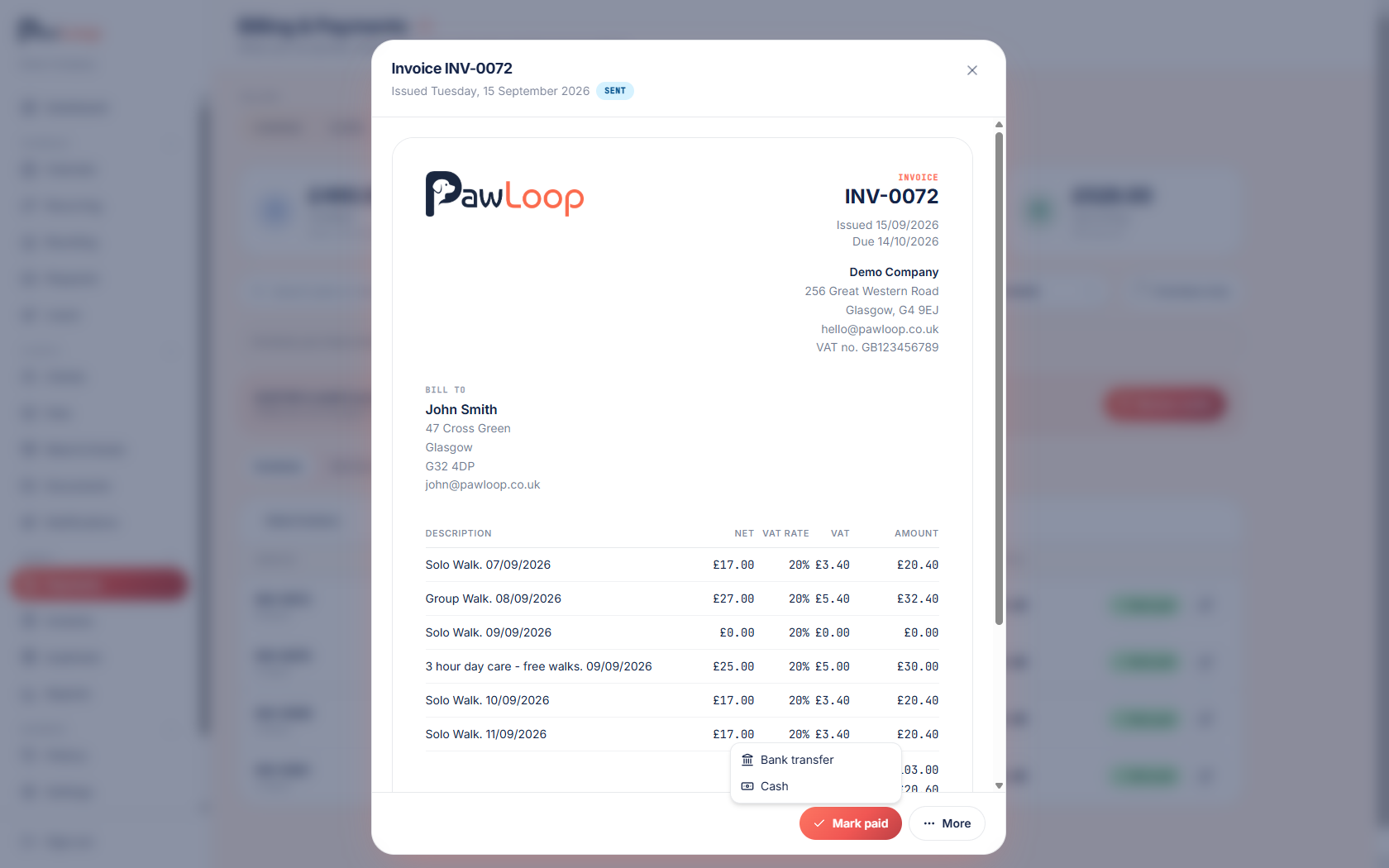
If you have the invoice open, use Mark paid at the bottom and choose Bank transfer or Cash there. The invoice then shows how it was paid alongside its paid status.
Correct the method later if needed
Picked the wrong one? Open the invoice and change the payment method from the invoice actions. You do not need to unmark it as paid first.
See the split in your reports
Open Reports and look at the Payments section for a bank transfer versus cash breakdown, with totals, invoice counts and the percentage split for the period you are viewing.
Try it yourself
Everything in this guide is included from the free Starter plan upwards. Set up in minutes. No card required.
Create free account. No card required →Frequently asked questions
Related guides
Create your free PawLoop account today.
Sign up in minutes and try every feature free. PawLoop starts with a 14-day free trial. Every feature included and no payment card required to sign up. Choose a plan when your trial ends.
Start free trialNo spam. No card. Just a free pass to try PawLoop.