How to change your calendar colours
Every team member in PawLoop has a calendar colour that marks their walks and bookings on the calendar and in walk lists. You can change your own colour at any time, and on the Team plan you can set a different colour for each member.
Open Team members
Go to Settings from the sidebar, select the Team tab, then the Members sub-tab. You'll see everyone on your account, including yourself.
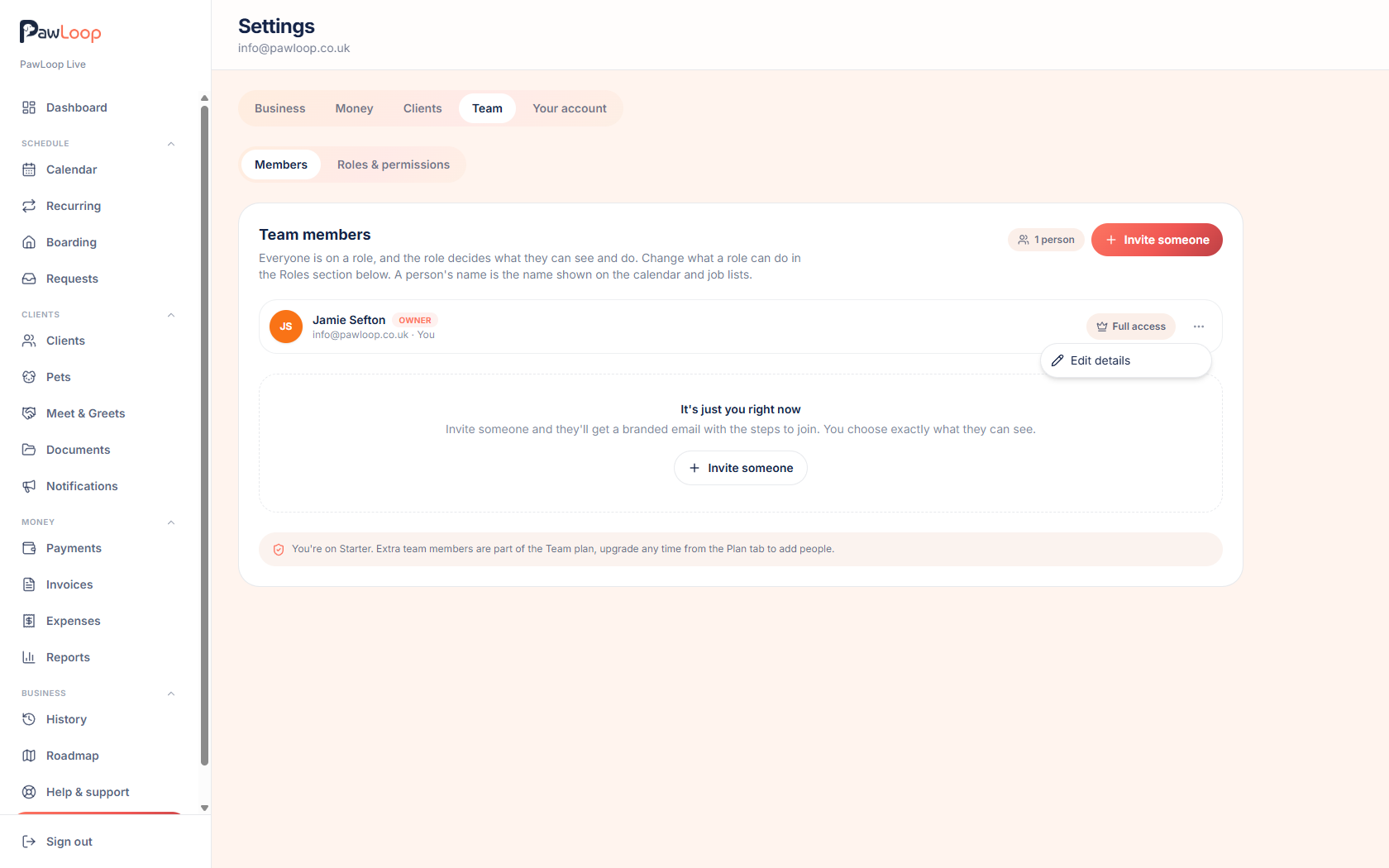
Open Edit details
Find the person whose colour you want to change and click Edit details. You can change your own colour on any plan. To change another team member's colour, you need to be on the Team plan and have permission to manage users.
Pick a colour
In the Calendar colour section, click one of the preset colour circles to apply it straight away.
If you want something different, click Custom and choose the exact shade you prefer.
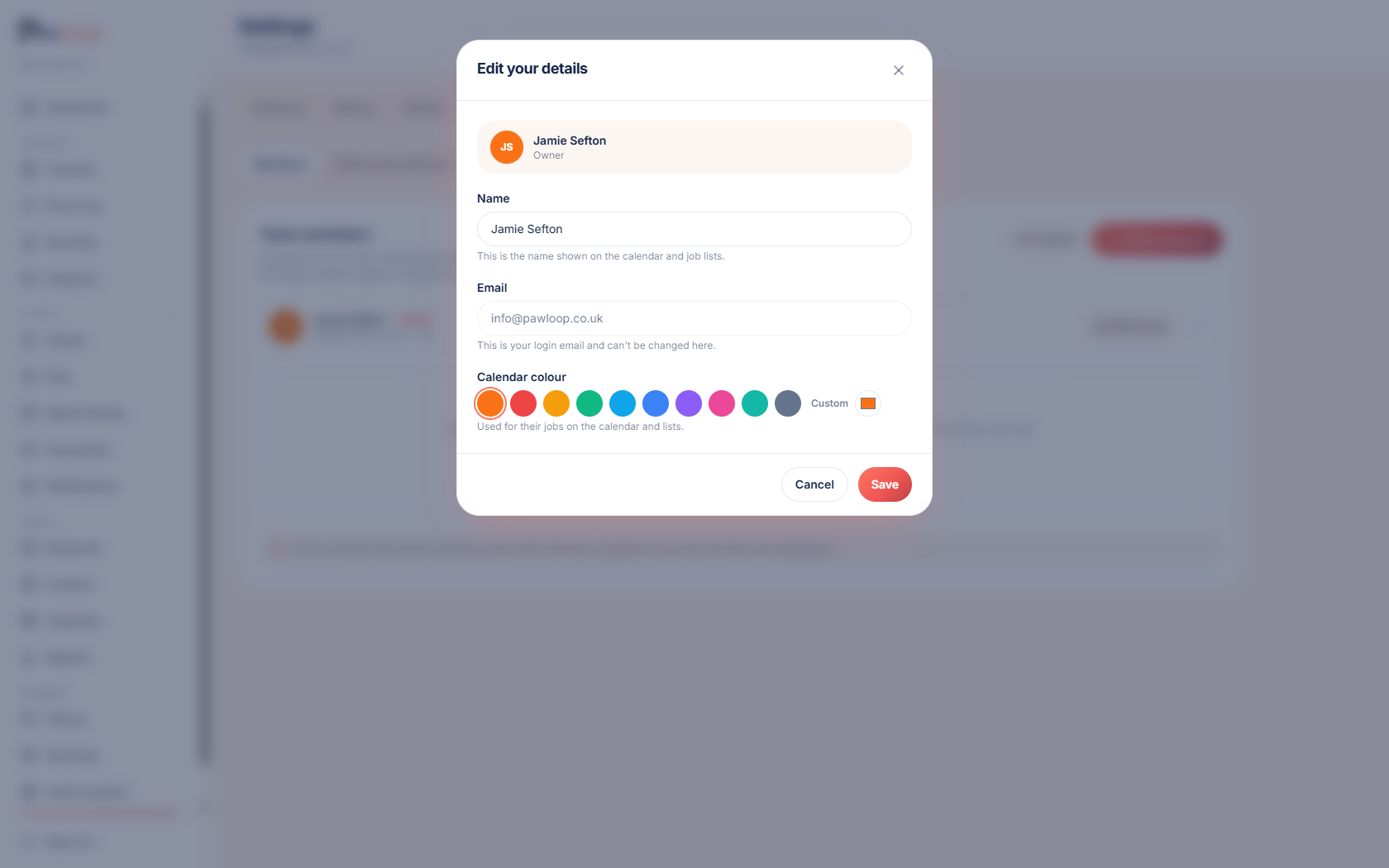
Save the change
Click Save. The colour is used immediately for that person's jobs on the calendar, in walk lists, and anywhere else a team member is shown by colour.
Set different colours for each team member
On the Team plan, repeat these steps for each team member to give everyone their own colour. This makes it easy to see at a glance who is assigned to which walk.
Try it yourself
Everything in this guide is included from the free Starter plan upwards. Set up in minutes. No card required.
Create free account. No card required →Frequently asked questions
Related guides
Create your free PawLoop account today.
Sign up in minutes and try every feature free. PawLoop starts with a 14-day free trial. Every feature included and no payment card required to sign up. Choose a plan when your trial ends.
Start free trialNo spam. No card. Just a free pass to try PawLoop.