Online Payments for dog walkers
Let clients pay their invoices by card.
- Clients pay an invoice by card in a few taps, and the money goes straight into your own account, never through PawLoop.
- PawLoop takes no cut and adds no platform fee. You pay the standard card fee and nothing else.
- Switch card payments on per client, so you decide exactly who gets the option.
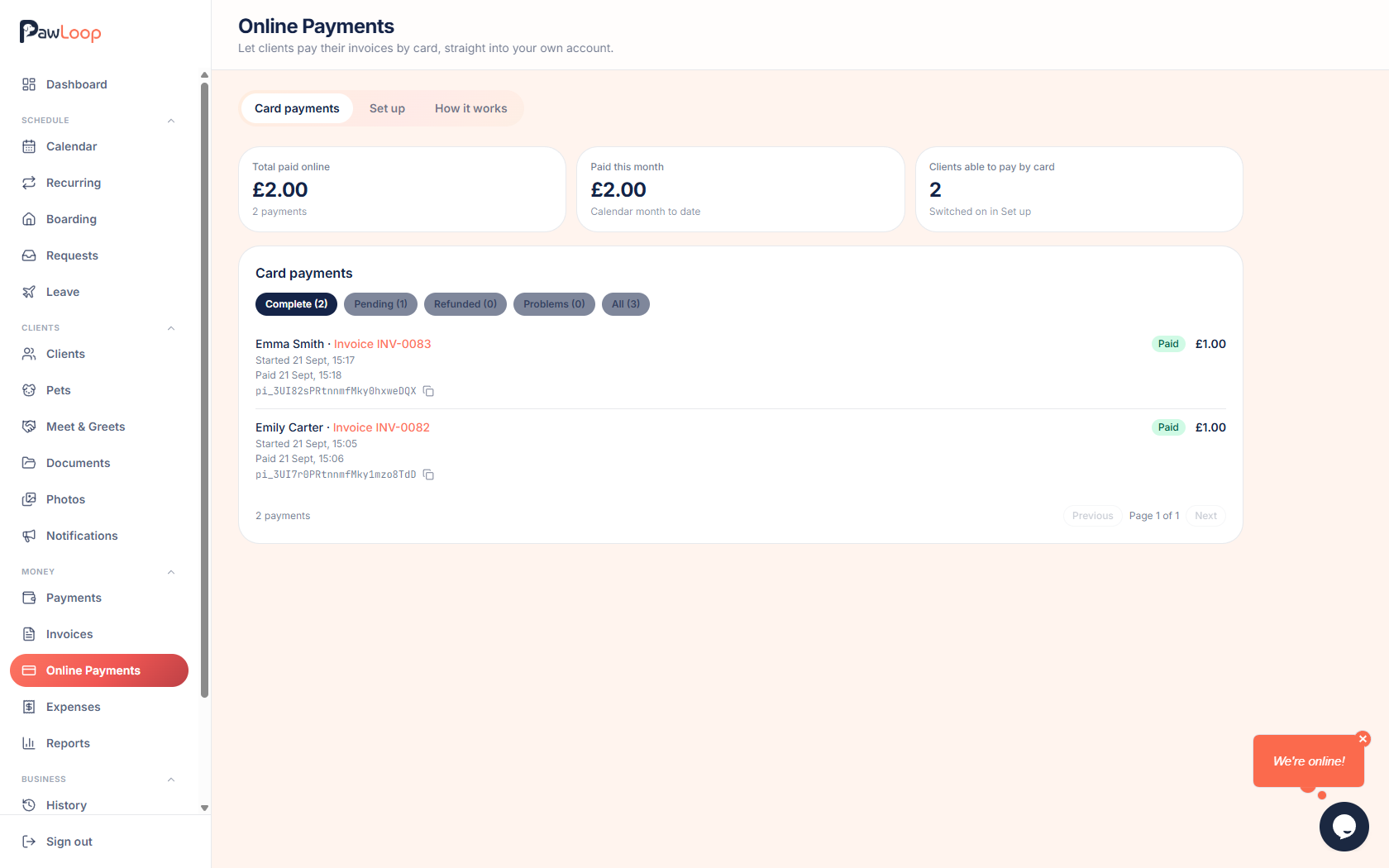
Chasing a bank transfer is one of the least enjoyable parts of running a dog walking business. Online Payments puts a Pay by card button on the invoices you send, so a client can settle up from their phone the moment they read it.
The money never passes through PawLoop. Payments are handled by Stripe, our payment partner, into a payment account that belongs to your business, and Stripe pays it into your bank account on its normal schedule. We add no platform fee and take no percentage: the only cost is the standard card fee, 1.5% plus 20p on a UK card.
Setup is a one-time job of about ten minutes. You tell Stripe about your business, add your bank account, and once you are approved you switch card payments on. From then on you choose which clients see the option, and everything else about invoicing, bank transfer and cash works exactly as it does today.
Key takeaways
What Online Payments does for your business
PawLoop never takes a cut
There is no platform fee and no percentage for us. The only cost is the standard card fee, which for a UK card is 1.5% plus 20p. On a £30 invoice that is 65p, so £29.35 reaches you.
The money is yours from the start
Payments go into your own payment account, not a PawLoop balance. Stripe pays it out to your bank account, generally within three working days and up to five.
You choose who can pay by card
Every client starts switched off. Turn clients on one at a time or in bulk, and invoices for anyone switched off show no card option at all.
Card details never touch PawLoop
Clients enter their card on Stripe's secure payment page. We never see or store a card number, so you carry none of that risk.
How you set it up
Stripe securely collects the details needed to take card payments. PawLoop never sees your identity documents or bank details.
- 1
Tell Stripe about your business
You’ll enter your trading name, address and contact details in Stripe’s secure form.
Useful tip: Choose “Other personal services” if you are unsure which industry to select.
- 2
Describe what your business does
Add your website so Stripe can understand the services you provide.
Useful tip: No website? You can enter a short description, such as dog walking and day care for local clients.
- 3
Confirm who runs the business
Stripe may ask for details about you and a photo ID. This is a standard financial security check.
- 4
Add your bank account
Enter the business bank account where you want Stripe to send your payouts.
- 5
Stripe reviews your details
Most businesses are approved quickly. If anything else is needed, you can return and finish it later.
- 6
Switch on card payments
Once approved, you choose which clients can see a Pay by card button on their invoices.
What happens when a client pays
Your client opens the invoice you sent and taps Pay by card. They enter their card details on Stripe's secure page, never on PawLoop. The payment appears straight away, the invoice is marked as paid by card, and the work on it is marked as paid too. The money sits in your own payment balance and is paid out to your bank account, generally within three working days and up to five. The exact date for each payout is shown in your payment portal.
Choose which clients can pay by card
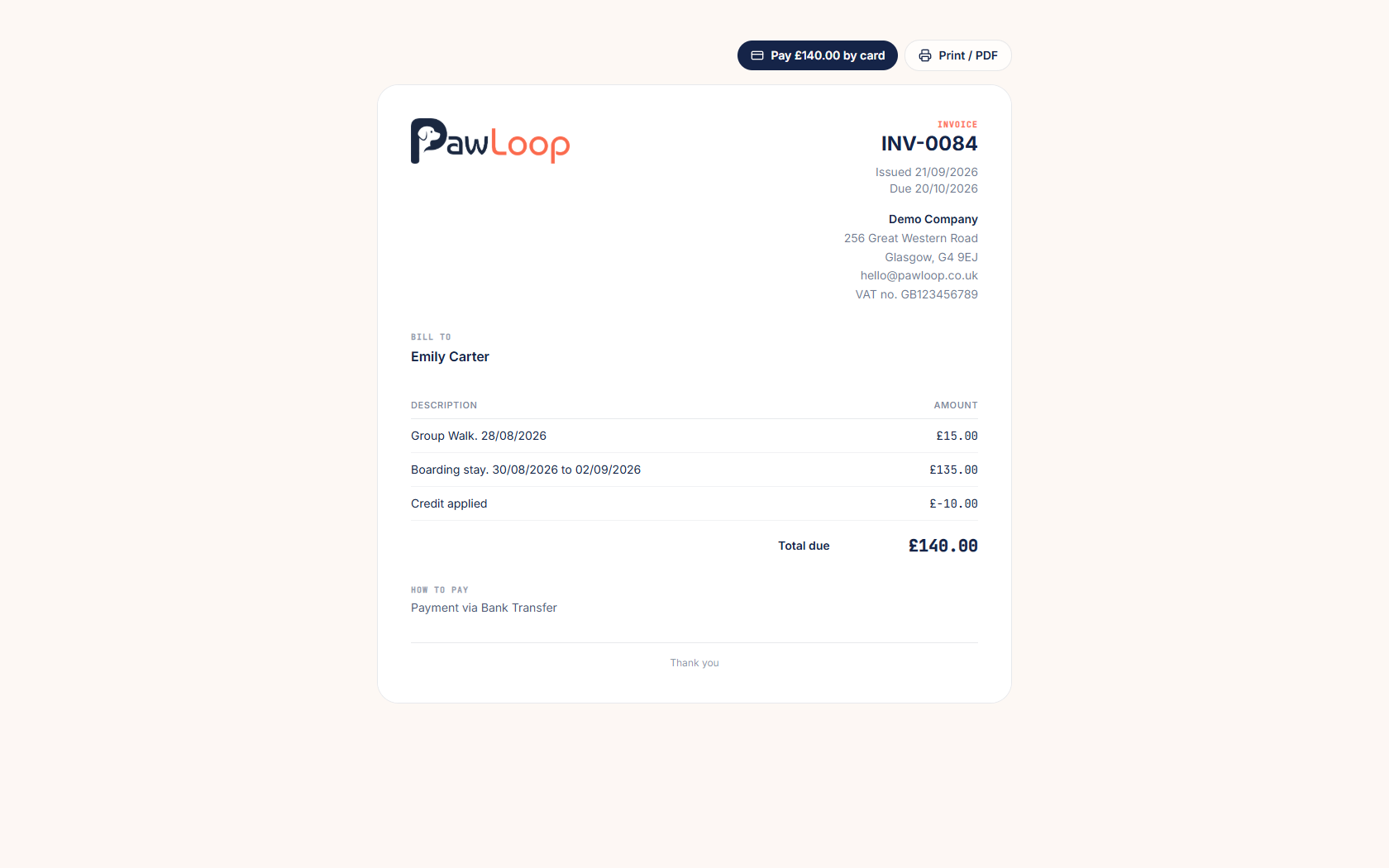
Card payments are controlled per client, and everyone starts switched off. Turn a client on and their invoices show a Pay by card button. Leave a client off and their invoices look exactly as they always have. You can switch clients on one at a time, tick several and change them in bulk, or use the same switch on the client's own profile under their invoices. There is also a single master switch, so you can pause card payments for everyone without losing your per-client choices.
Keep track of every payment
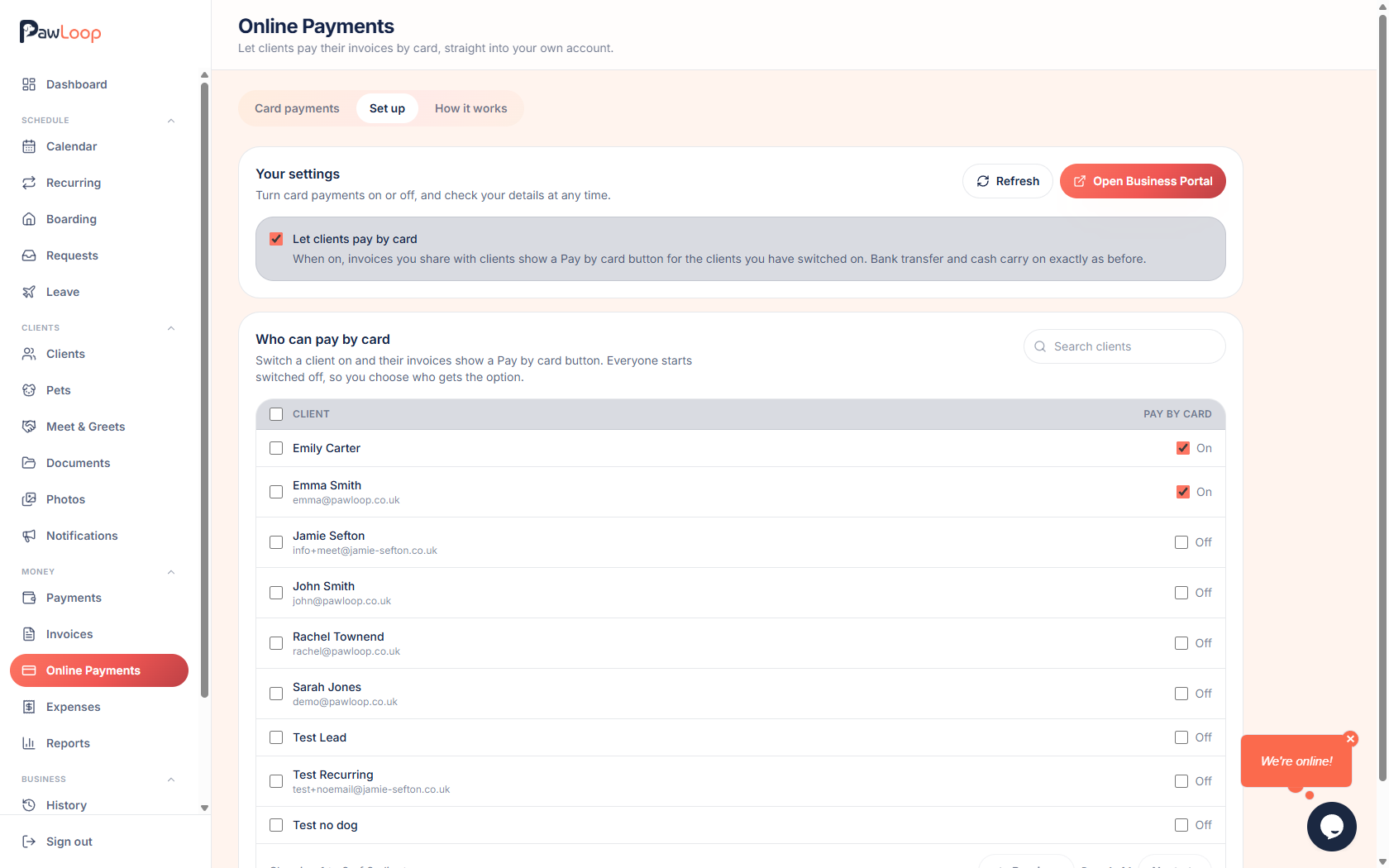
The Card payments tab shows what you have taken in total, what has come in this month, and how many clients can pay by card. Each payment lists the client, a link to the invoice it settled, when it started and when it was paid, the card type and last four digits, whether it was debit or credit, and the payment reference you can copy if you ever need to find it in your payment portal. Payments are grouped into Complete, Pending, Refunded and Problems, so a failed or refunded payment is never buried in the list.
Your own payment portal
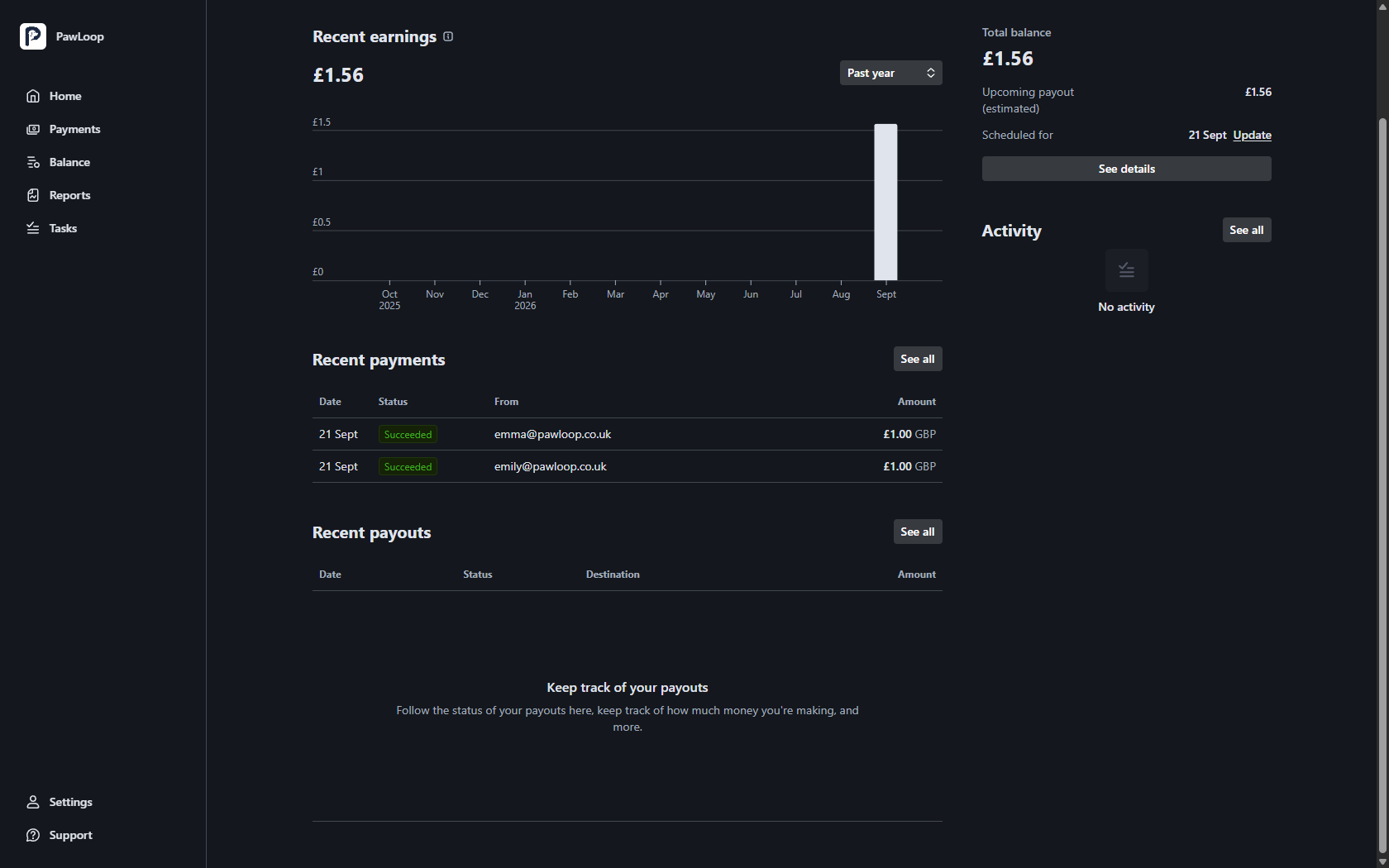
You get your own secure portal for the payment side of things, opened straight from PawLoop with no extra account to create. It shows your balance, your next payout and when it is scheduled, every payment and payout, and downloadable reports for your accountant. It is also where you change the bank account you are paid into, update your business details, and deal with anything Stripe asks you to confirm. PawLoop stays the place you manage clients, invoices and work.
Online Payments questions, answered
Create your free PawLoop account today.
Sign up in minutes and try every feature free. PawLoop starts with a 14-day free trial. Every feature included and no payment card required to sign up. Choose a plan when your trial ends.
Start free trialNo spam. No card. Just a free pass to try PawLoop.