How to switch between light and dark mode
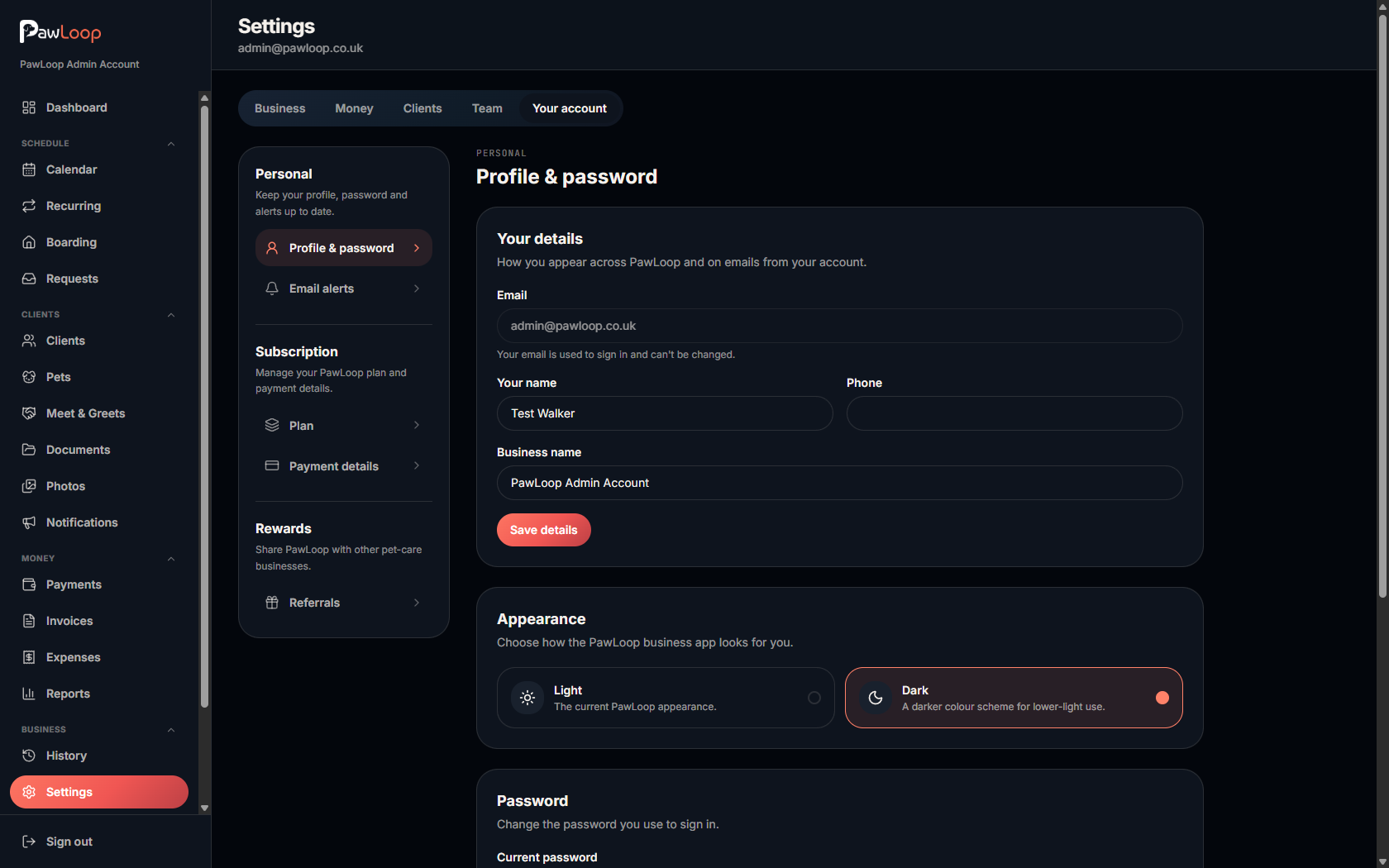
PawLoop has two appearances. Light mode is the standard look, and dark mode uses a darker colour scheme that is easier on the eyes in low light. Switching takes a few seconds and only changes colours, nothing else.
Open Settings
Go to Settings in the sidebar.
Open Profile and password
Under Your account, choose Profile & password. This page holds your personal details, your password and your appearance setting.
Choose Light or Dark
Scroll to the Appearance section and pick Light or Dark.
- Light is the current PawLoop appearance.
- Dark is a darker colour scheme for lower-light use.
Save your choice
The change applies straight away and is saved to your account, so it loads automatically the next time you sign in on any device.
Try it yourself
Everything in this guide is included from the free Starter plan upwards. Set up in minutes. No card required.
Create free account. No card required →Frequently asked questions
Related guides
Create your free PawLoop account today.
Sign up in minutes and try every feature free. PawLoop starts with a 14-day free trial. Every feature included and no payment card required to sign up. Choose a plan when your trial ends.
Start free trialNo spam. No card. Just a free pass to try PawLoop.