How to book time off as a team member
Booking time off takes a few seconds, and PawLoop shows you the work in that period before you send it, so nothing comes as a surprise later.
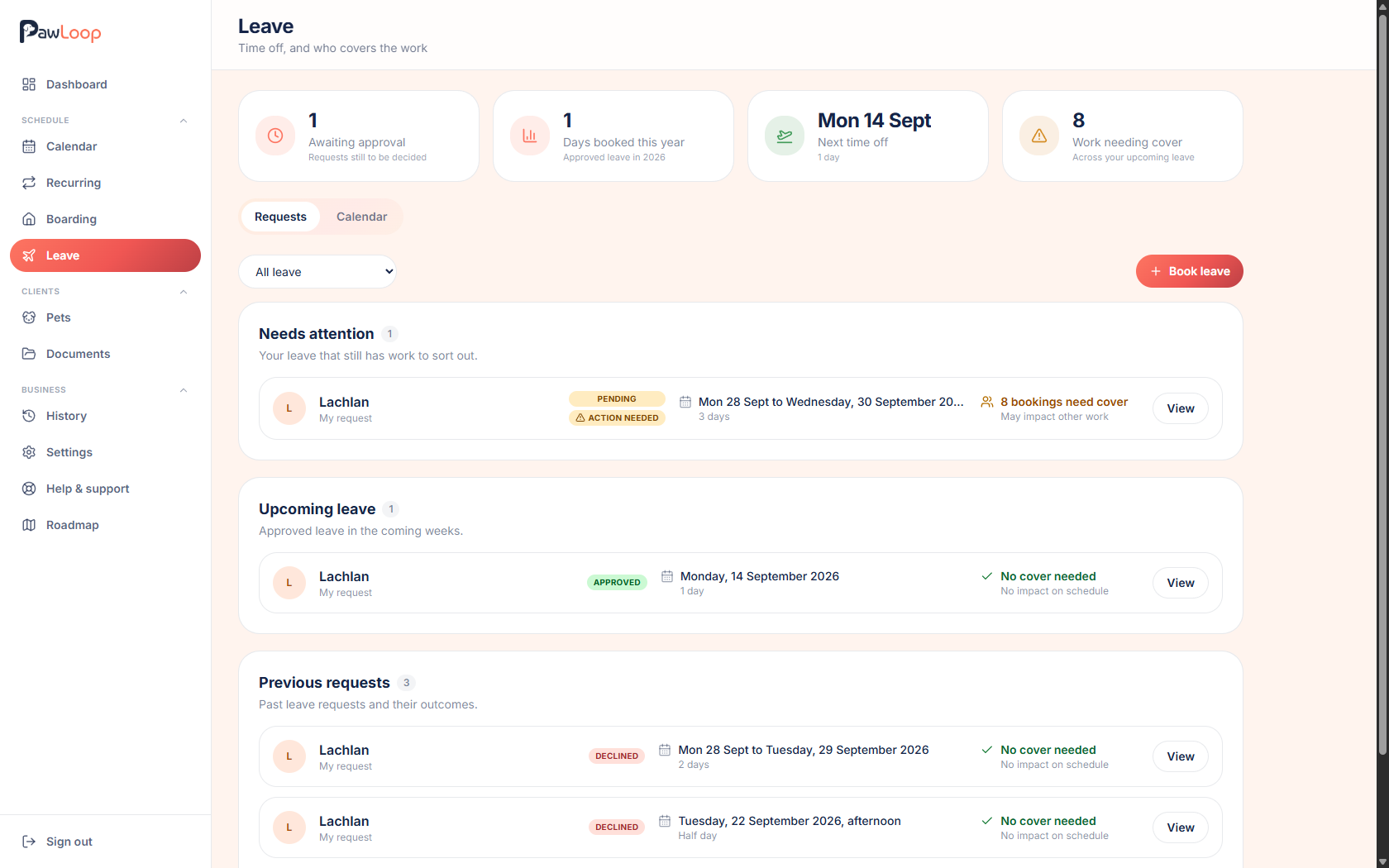
Open Leave
Select Leave in the sidebar, under your scheduling pages, and stay on the Requests tab.
Choose your dates
Select Book leave and pick a first and last day. For a single day you also choose how much of it you need: full day, morning or afternoon.
Morning means before midday and afternoon means from midday onwards. Over several days you can start on an afternoon and finish on a morning.
Add a note if it helps
The notes box is optional. Use it for anything your approver should know.
Check the work in that time
The dialog lists the walks, services and boarding stays assigned to you across those dates. You can still send the request when work is affected, it's there so everyone can see what needs covering.
Send it and track it
If approval is required you'll send a request and it waits for a decision. If your business doesn't require approval, it's booked straight away.
Your requests sit under My requests, with anything already dealt with under Previous requests. You can cancel your own leave from the request itself.
Try it yourself
Everything in this guide is included from the free Starter plan upwards. Set up in minutes. No card required.
Create free account. No card required →Frequently asked questions
Related guides
Create your free PawLoop account today.
Sign up in minutes and try every feature free. PawLoop starts with a 14-day free trial. Every feature included and no payment card required to sign up. Choose a plan when your trial ends.
Start free trialNo spam. No card. Just a free pass to try PawLoop.