How to review and approve leave requests
If you can approve leave, the Leave page opens with everything waiting on you at the top, along with the work each request would leave uncovered.
Open the Requests tab
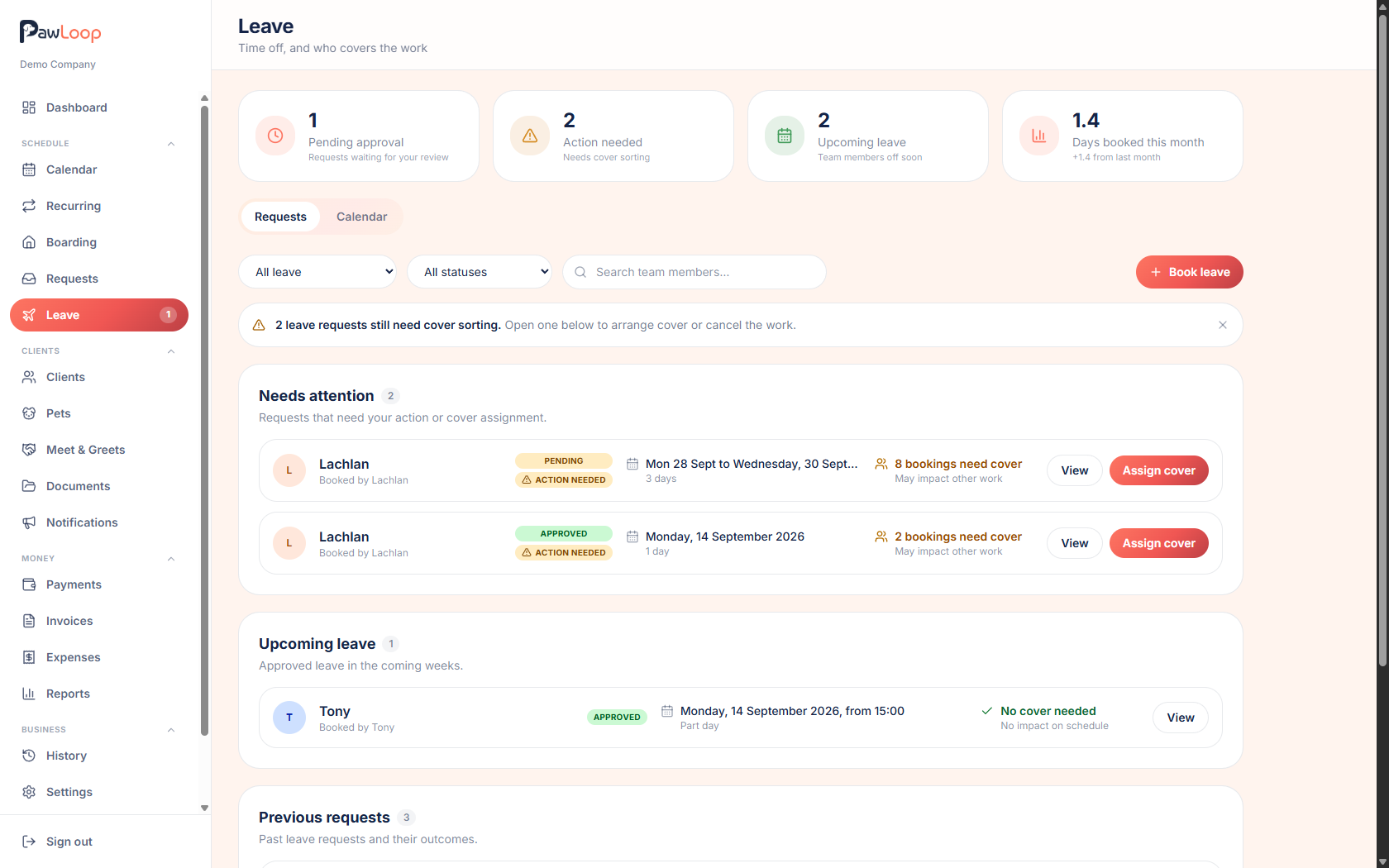
Select Leave in the sidebar. Requests are grouped into Needs your review, Upcoming leave, My requests and Previous requests, and the sidebar shows a badge when something is waiting.
Open a request
Select a request to see who it's for, the dates, whether it's full or half days, and any note they left.
Check the work in that time
The request lists every walk, service and boarding stay assigned to that person across the period, with the date, time, client, pets and cover status.
Approve or decline
Approve to book the leave. Decline opens a box for an optional reason, which the person sees in their email.
Approved leave can still be cancelled later if plans change.
Use the calendar for the bigger picture
The Calendar tab shows leave across the month with morning, afternoon and all day marked. Move between months and filter by team member, then select any entry to jump to the request.
Try it yourself
Everything in this guide is included from the free Starter plan upwards. Set up in minutes. No card required.
Create free account. No card required →Frequently asked questions
Related guides
Create your free PawLoop account today.
Sign up in minutes and try every feature free. PawLoop starts with a 14-day free trial. Every feature included and no payment card required to sign up. Choose a plan when your trial ends.
Start free trialNo spam. No card. Just a free pass to try PawLoop.