How to add PawLoop to your iPhone home screen
PawLoop runs in your browser, but on an iPhone you can save it to your home screen so it looks and behaves like an app. It gets its own icon, opens full screen with no browser bars, and takes you straight to your dashboard.
Open PawLoop in Safari
Go to pawloop.co.uk in Safari on your iPhone and sign in as normal.
It has to be Safari. Chrome and other browsers on iPhone can't add a web app to the home screen.
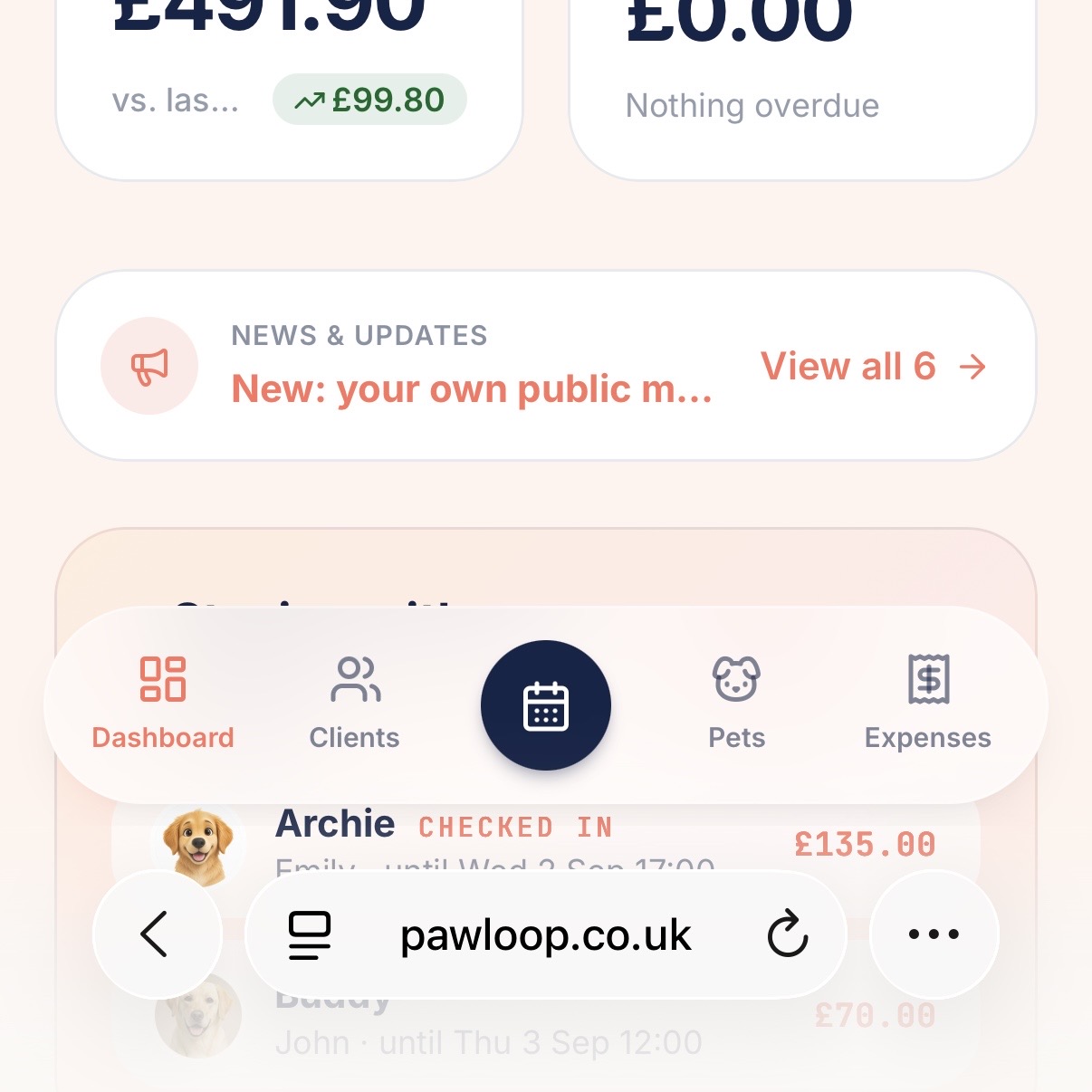
Open the Safari menu
Tap the three dots button to the right of the address bar at the bottom of the screen.
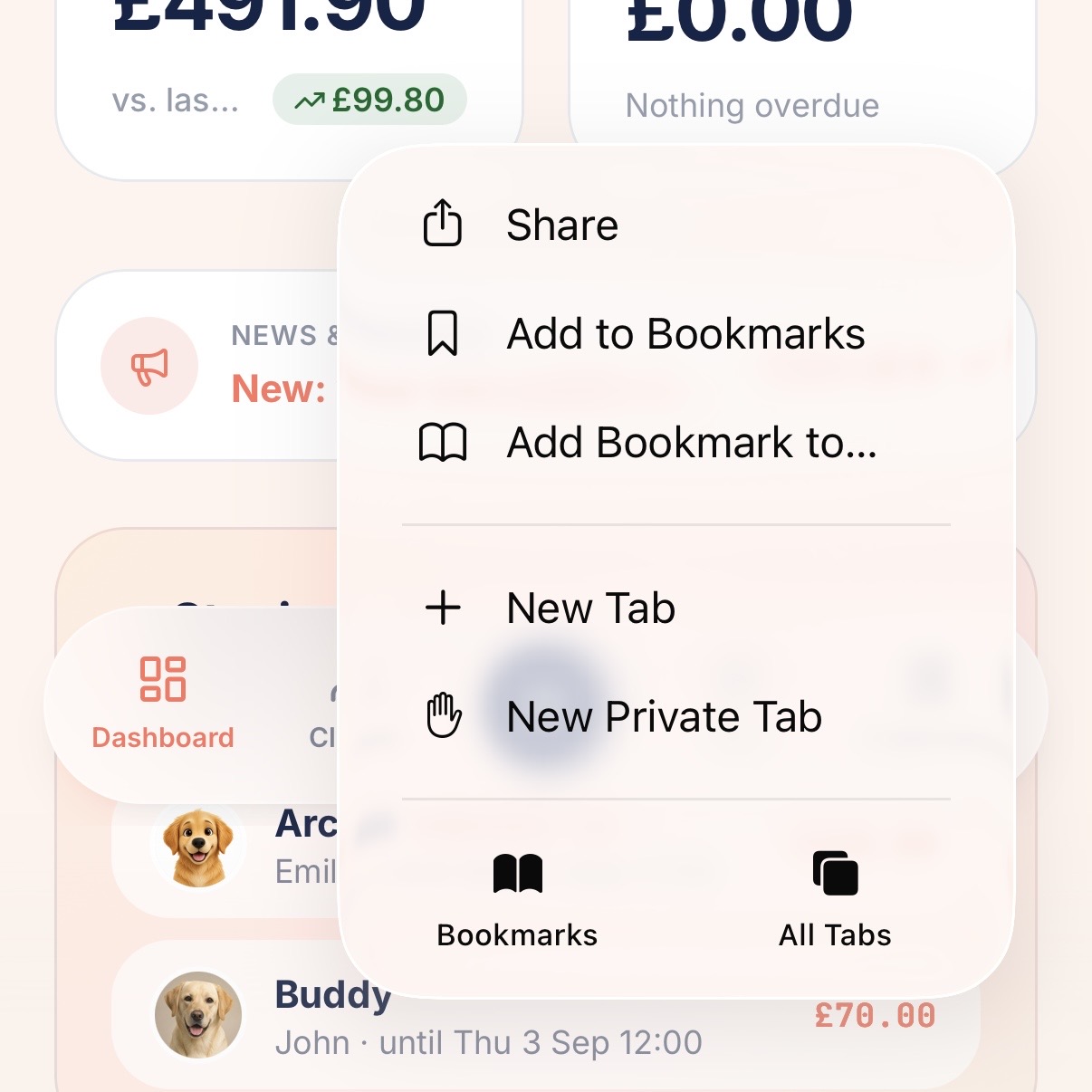
Tap Share
Choose Share at the top of the menu. The share sheet opens with the PawLoop icon and the page title at the top.
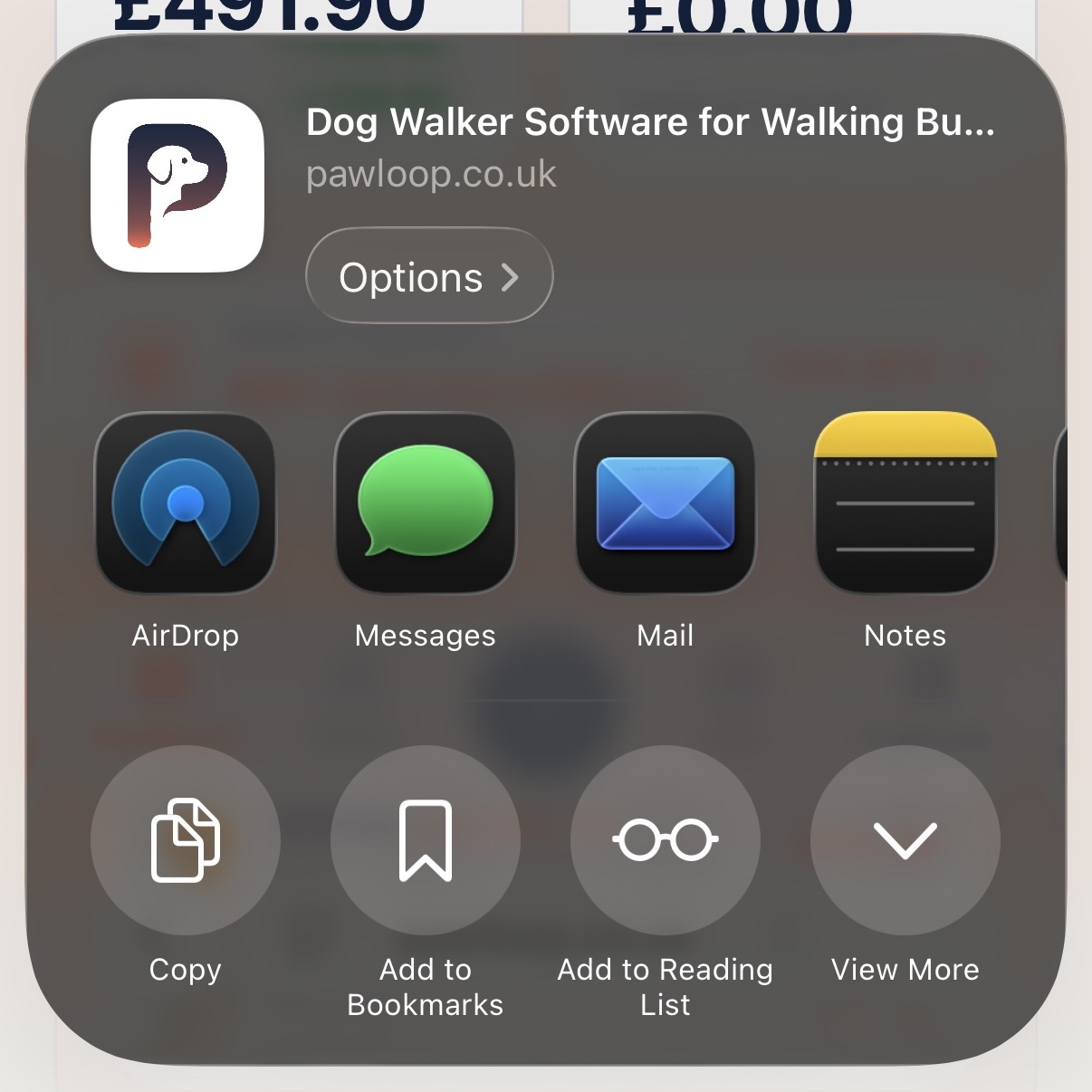
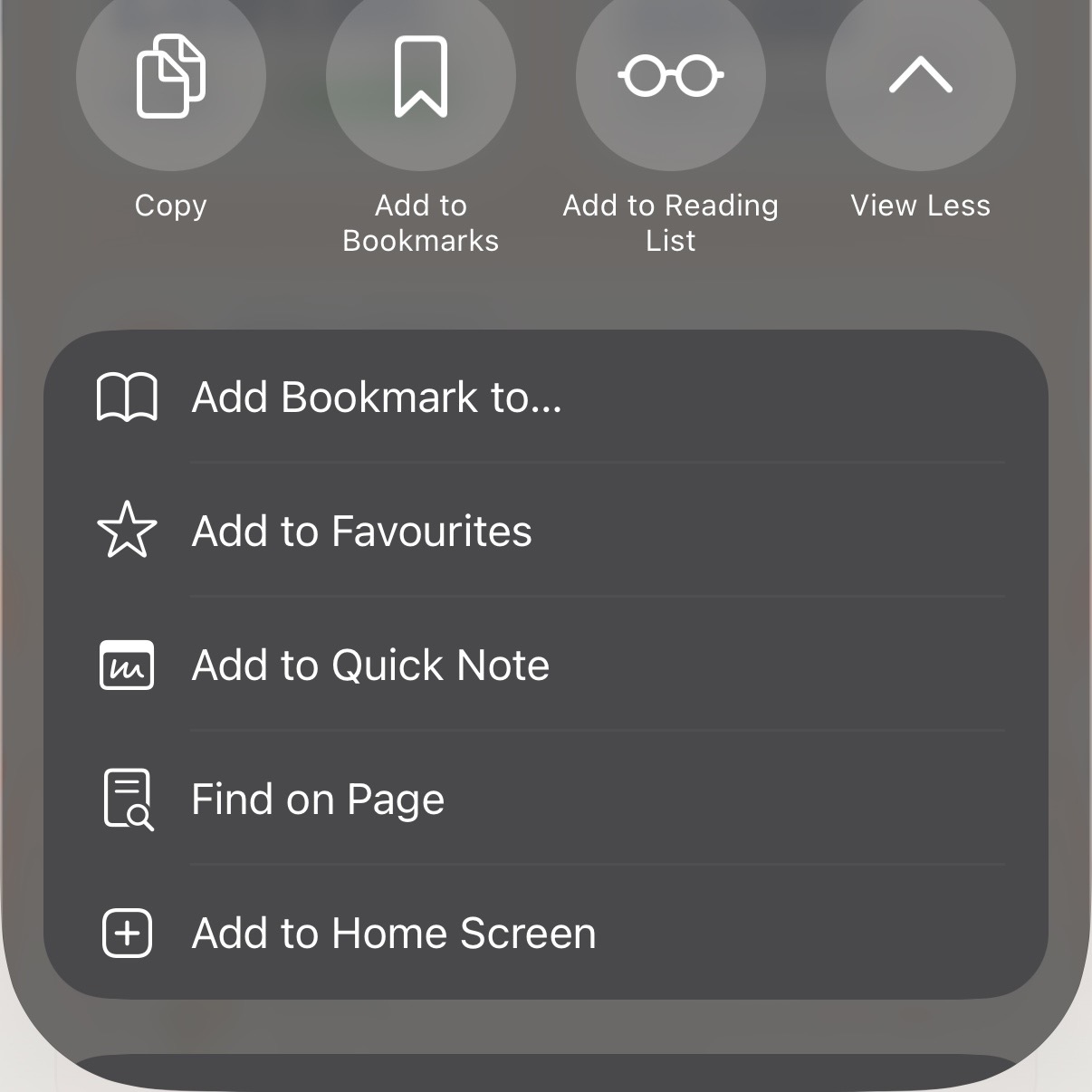
Tap View More, then Add to Home Screen
Scroll the list of actions, or tap View More to expand it, then choose Add to Home Screen.
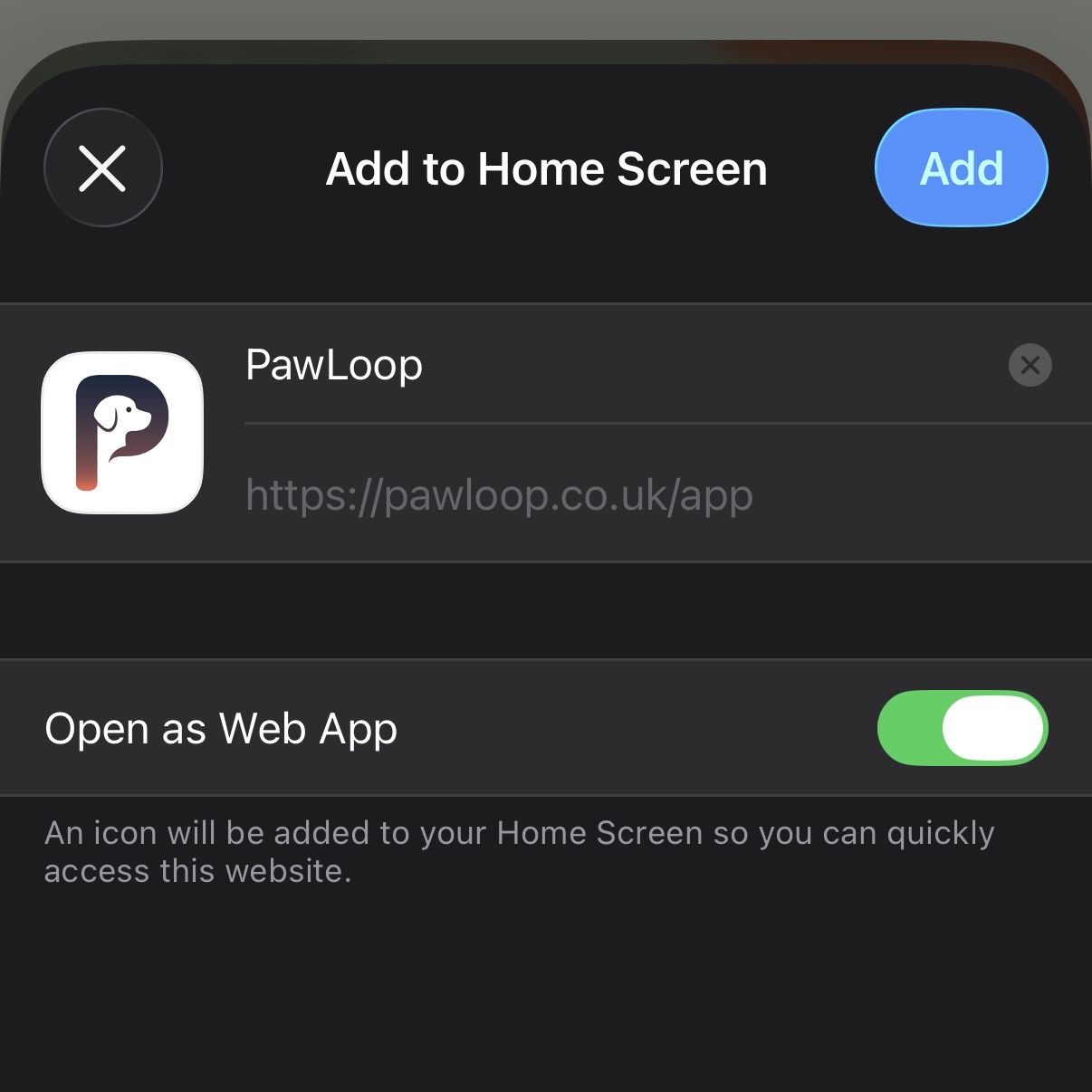
Name it and tap Add
The name defaults to PawLoop and the address to pawloop.co.uk/app, so the icon opens straight into your dashboard.
Leave "Open as Web App" switched on so it launches full screen without the Safari bars, then tap Add.
Open it from your home screen
The PawLoop icon now sits alongside your other apps. Tap it and you go straight to your dashboard, full screen and still signed in.
Try it yourself
Everything in this guide is included from the free Starter plan upwards. Set up in minutes. No card required.
Create free account. No card required →Frequently asked questions
Related guides
Create your free PawLoop account today.
Sign up in minutes and try every feature free. PawLoop starts with a 14-day free trial. Every feature included and no payment card required to sign up. Choose a plan when your trial ends.
Start free trialNo spam. No card. Just a free pass to try PawLoop.