Leave management for dog walkers
Staff leave that shows you the work it affects, not just a note in a diary.
- Book full or half days across any date range, with notes.
- Approval is optional: require sign off, or let leave book itself.
- Every request lists the walks, services and stays in that period.
- Arrange cover in a click, with warnings for clashes and other leave.
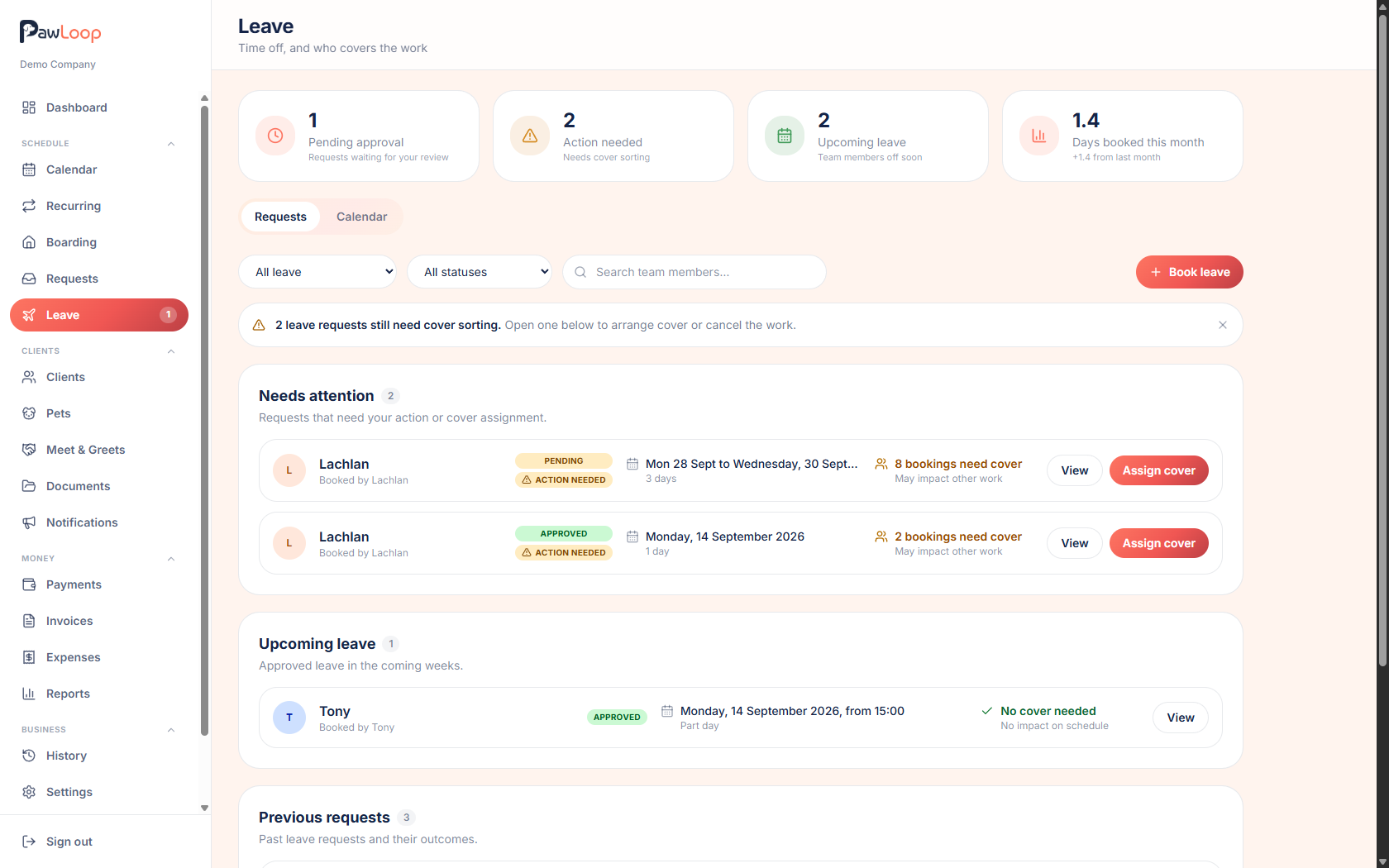
Most teams keep leave somewhere else: a group chat, a wall planner, a shared calendar nobody updates. The problem isn't recording the absence, it's working out what the absence breaks. Leave management in PawLoop starts from the work.
A team member books time off from the Leave page, choosing full or half days across a date range. Morning means before midday, afternoon means midday onwards, and boarding stays are matched on their real start and end times. Before the request is even sent, it shows the walks, services and stays assigned to that person in that period. They can still submit when work is affected, because that's the whole point of asking early.
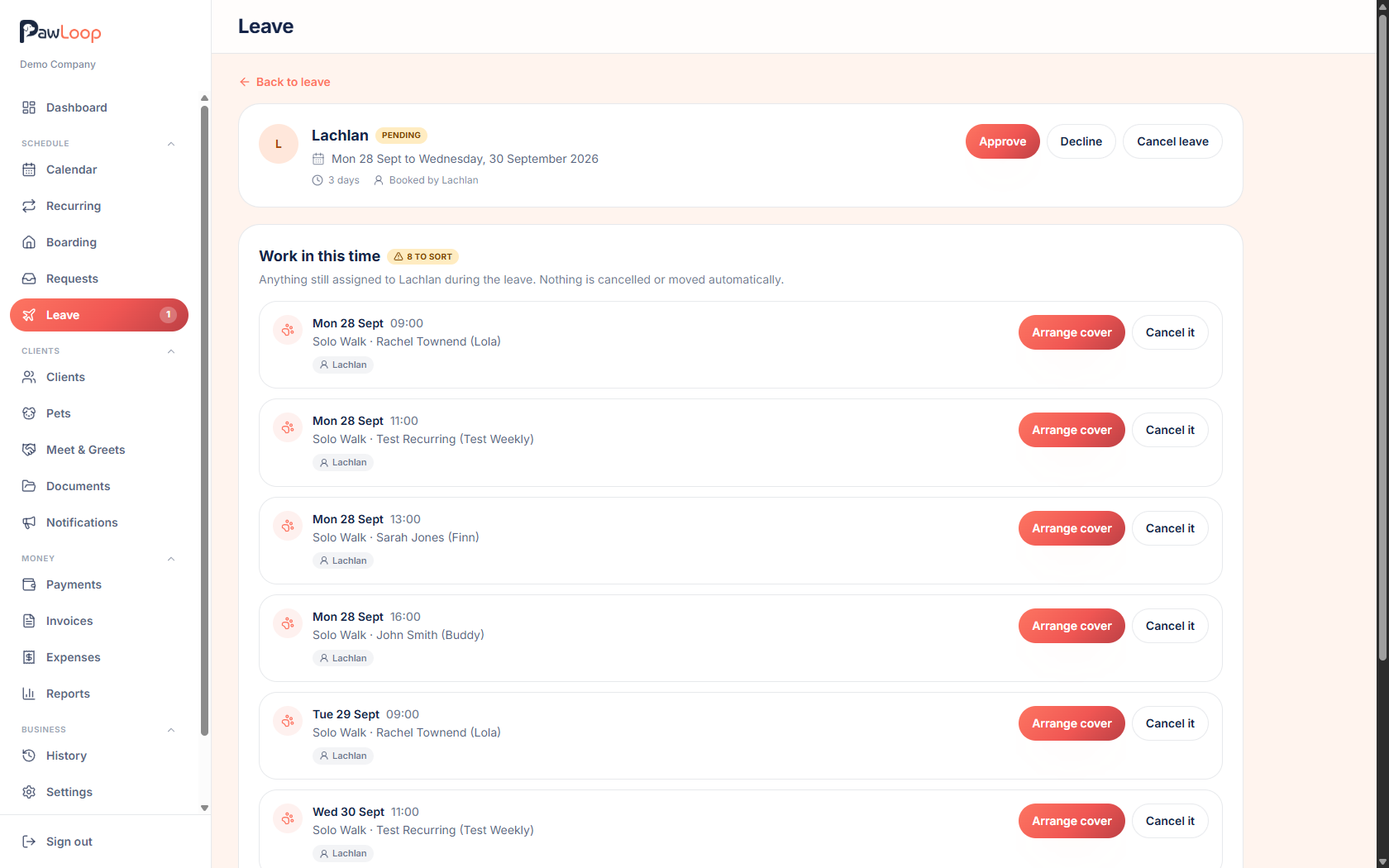
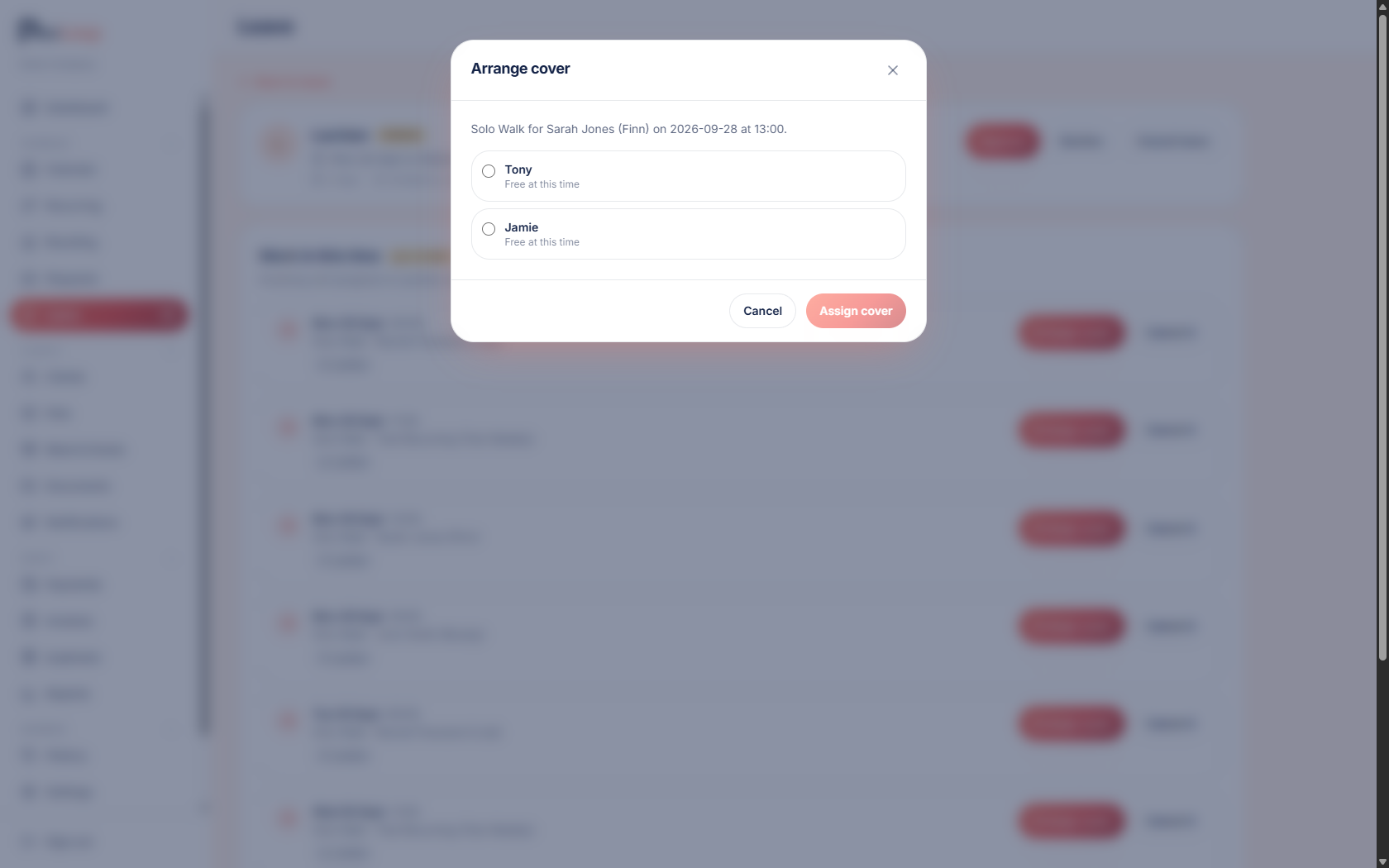
If your business requires approval, anyone with the Approve leave requests permission sees it under Needs your review, along with the same list of affected work. They approve or decline with an optional reason, and emails go out on every decision. Cover is arranged one booking at a time, with each possible replacement shown as free or with the exact reason they aren't: their own booking, a boarding stay, a calendar event, or leave of their own. You can still assign anyway after confirming.
Leave management needs the Team plan. Once it is switched on for your business, it appears in the sidebar.

Key takeaways
What Leave management does for your business
See the impact, not just the absence
A leave request isn't a line in a spreadsheet. It lists the actual bookings in that period with client, pets, time and cover status, so you know exactly what needs sorting before you say yes.
Approval that fits your team
Keep approval on and requests wait for someone with the right permission. Turn it off and leave books itself. Either way it's one switch in settings.
Cover without double bookings
Reassign an affected walk or stay to someone else in a couple of clicks. The existing booking moves, it isn't duplicated, and a recurring loop only changes on the affected date.
Nothing disappears on its own
Leave never cancels, moves or deletes work. It flags what's affected and warns you if new work is assigned to someone who's away, and the decisions stay yours.
Turn it on and choose how it works
Leave is a Team plan feature, enabled for your business first. Once it's on, Leave appears in the sidebar with a badge whenever something needs reviewing. Under Settings, Team, Leave there's a single switch: require leave requests to be approved. It's on by default, and turning it off means leave is booked the moment it's requested. Approval rights are a role permission, so a manager can sign off time off without becoming an owner. Owners always keep it, and standard staff manage only their own leave.
Booking time off
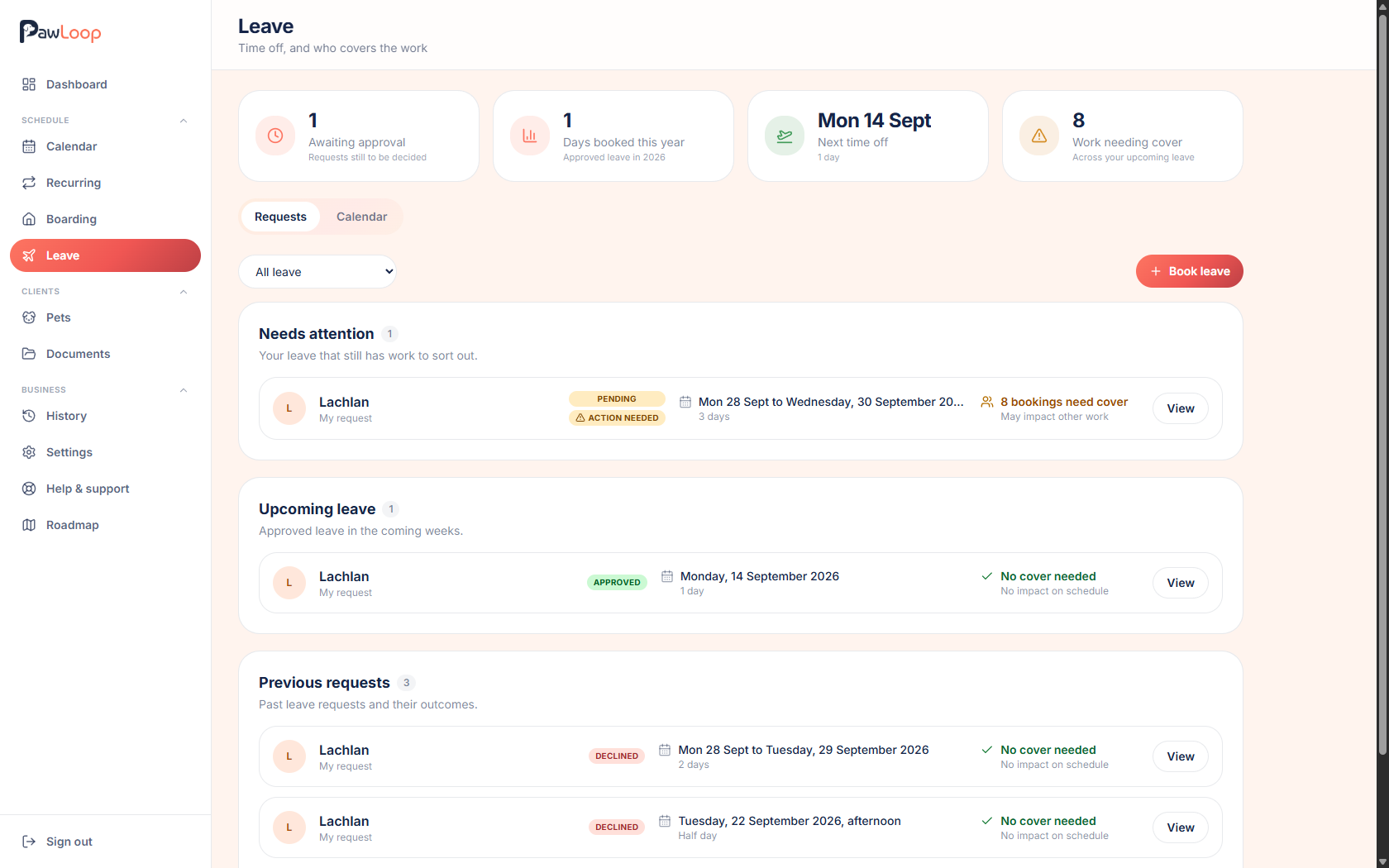
A team member picks a first and last day and how much of each they need: full day, morning or afternoon. Over several days they can start on an afternoon and finish on a morning. Notes are optional, for anything the approver should know. Their own requests are listed under My requests, with anything already decided under Previous requests, and they can cancel their own leave at any point.
Reviewing requests
Approvers land on a page grouped into Needs your review, Upcoming leave, My requests and Previous requests, with filters to narrow things down. Opening a request shows who it's for, the dates and periods, the note, and every booking in that time. Approve to book it, or decline with a reason the person sees in their email. Approved leave can still be cancelled later.
Arranging cover
Each affected booking has its own Arrange cover action. Pick a replacement from a list that tells you who is free and who isn't, and why: their own walk, a boarding stay, a calendar event or approved leave. Assign cover, or confirm and assign anyway when you know it works in practice. The booking is reassigned in place rather than duplicated, so the client keeps the same time with a different person, and a recurring loop only changes on the affected date.
The leave calendar
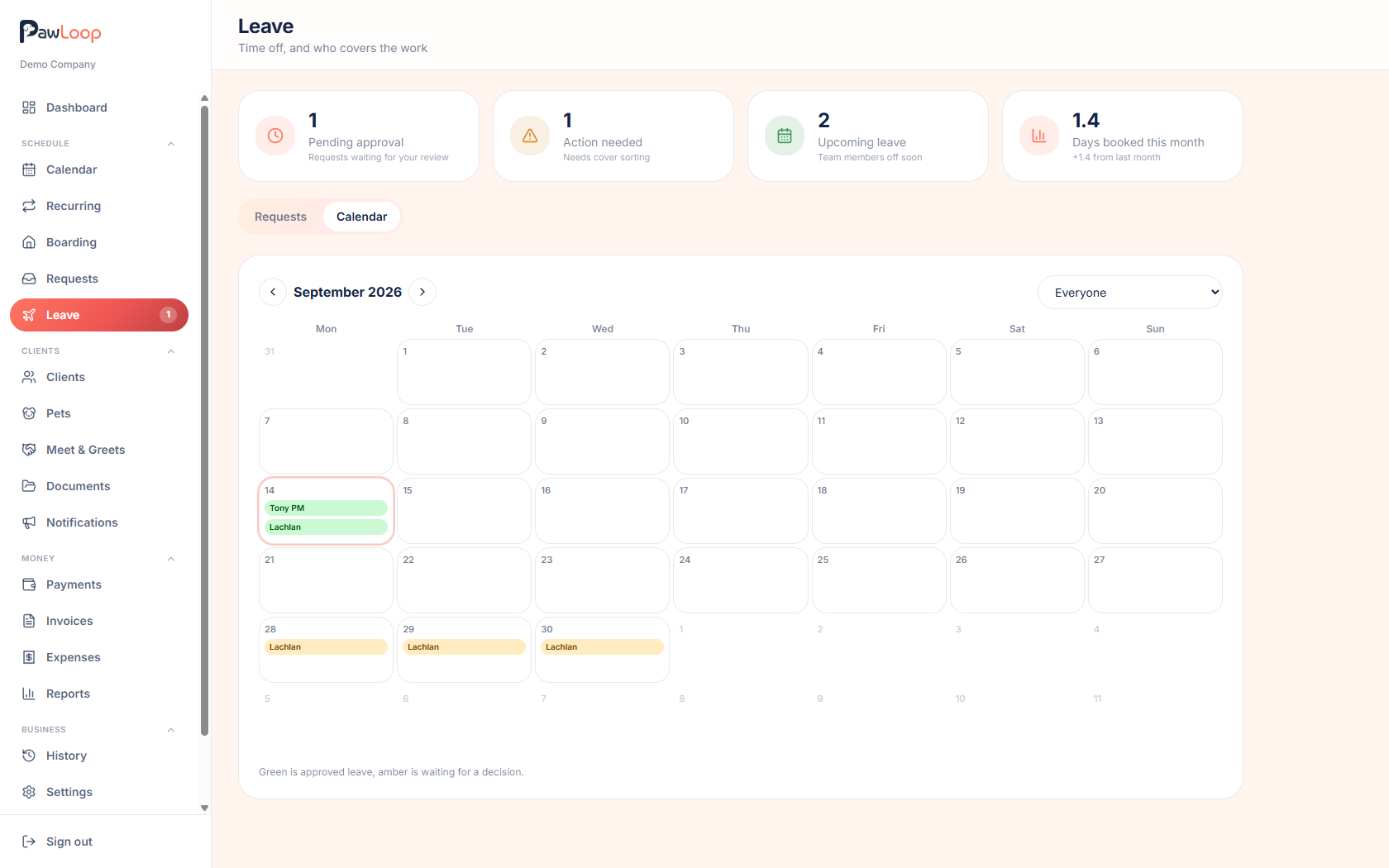
The Calendar tab gives you the month at a glance, with approved leave and, where you're allowed to see it, pending leave too. Each entry is marked all day, AM or PM, you can move between months, filter by team member, and select any entry to open the request. Leave also appears on your main calendar for the week, so you spot who's away while you're planning.
Warnings, not surprises
Approved leave doesn't lock anyone out of the diary. Instead PawLoop warns you when work is already assigned to someone who's away, and again when new work is assigned during their leave. Emails cover the whole loop: approvers hear when a request needs reviewing, and the person hears when it's approved, declined, or approved automatically on their behalf.
Leave management questions, answered
Create your free PawLoop account today.
Sign up in minutes and try every feature free. PawLoop starts with a 14-day free trial. Every feature included and no payment card required to sign up. Choose a plan when your trial ends.
Start free trialNo spam. No card. Just a free pass to try PawLoop.