Deposits for dog walkers
Take a deposit on a booking or a stay, and let it come off the final bill.
- Set one deposit amount for services and one for boarding, as a percentage or a fixed amount.
- Take a deposit only when you want to, with the amount and due date always editable.
- Each deposit gets its own invoice, so the client can pay it before the work happens.
- Once that deposit invoice is marked paid, it is deducted from the final invoice automatically.
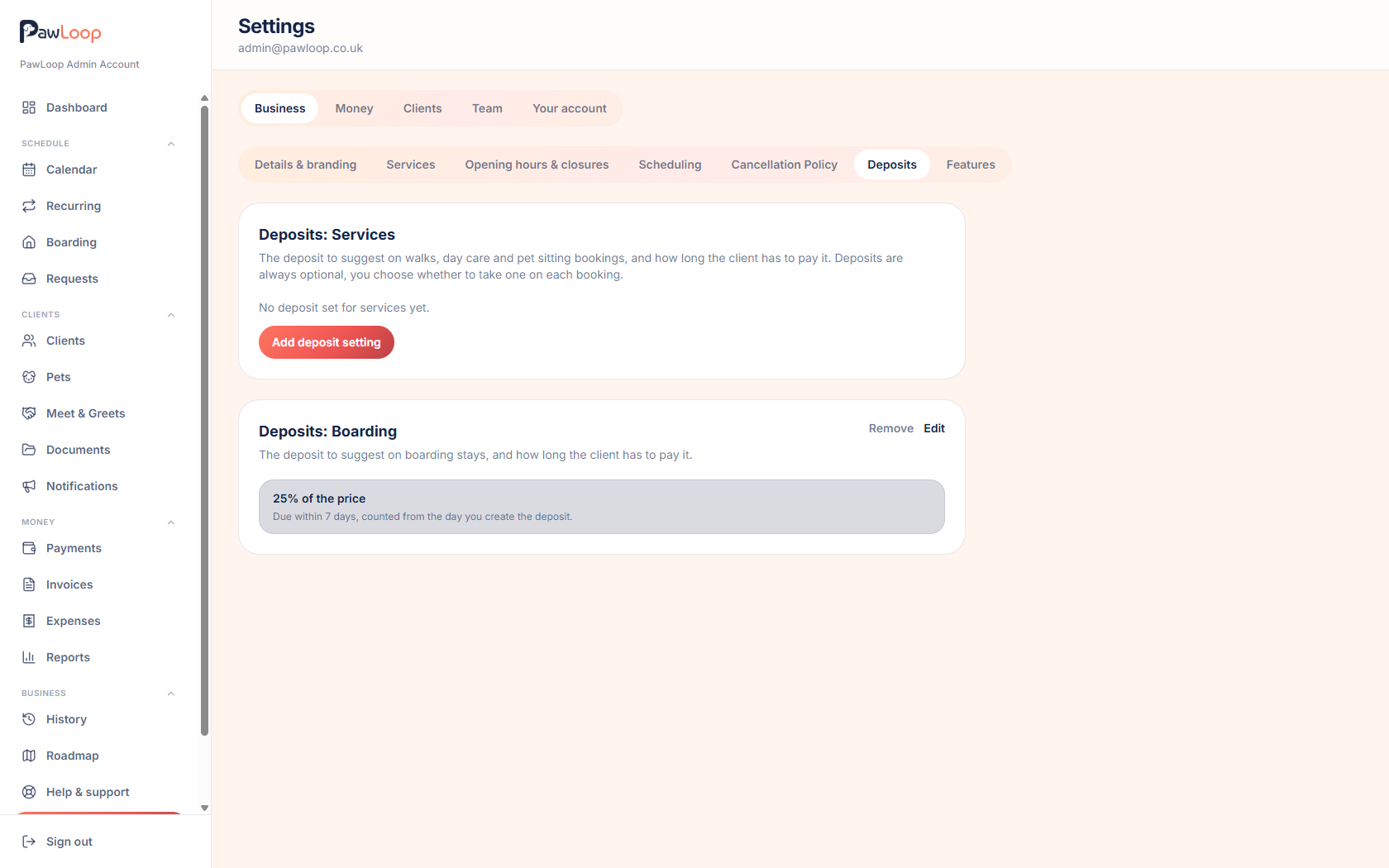
Deposits give you a way to take money before the work happens, without changing how you bill everything else. You save one deposit setting for services and one for boarding, each a percentage of the price or a fixed amount, along with how many days the client has to pay it. From then on, any booking or stay can have a deposit added from its own screen, with the suggested figure already filled in.
A deposit is invoiced on its own. One click raises an invoice containing a single deposit line, which you send, share or download like any other invoice. It moves through draft, sent and paid in the usual way, and the whole list lives under a Deposits tab on the Payments page with filters for each stage.
When the time comes to bill the work itself, a deposit whose invoice has been marked as paid is deducted from the total, shown clearly under the full price so the client can see what they already paid. If the deposit invoice is still a draft, unsent, unpaid or voided, no deduction is applied and nothing changes. Deposits are entirely optional and switched on per business.

Key takeaways
What Deposits does for your business
Secure the booking, not just the promise
A deposit paid before a stay or a busy week is a commitment. It gives you money in the bank ahead of the work and makes a last-minute drop-out far less likely.
One setting each for services and boarding
Save a percentage or a fixed amount for services, and a separate one for boarding, along with how many days the client has to pay. PawLoop suggests the figure each time and you can change it.
No side spreadsheet
Every deposit is listed in Payments with its invoice status, so you can see at a glance who has paid, who has been sent an invoice and who has not been invoiced at all.
The final bill does the maths
When you invoice the booking or stay, a paid deposit is shown as a deduction under the normal price. If the deposit invoice is not paid, nothing is deducted.
Switch deposits on for your business
Deposits appear as their own switch under Settings, Business, Features. With the switch off, no deposit sections, dialogs or tabs appear anywhere in PawLoop. Turning it off later hides those surfaces but keeps any deposits and invoices you already created.
Save one setting for services and one for boarding
Under Settings, Business, Deposits you start with nothing set. Add a deposit setting for services and, separately, one for boarding. Each is either a percentage of the booking price, such as 25%, or a fixed amount, such as £30. You also set how many days the deposit is due within, counted from the day you create the deposit, not from the date of the booking. Set it to zero and the deposit is due straight away. There is no lead-time logic to think about, and either setting can be edited or removed at any time.
Take a deposit from the booking or the stay
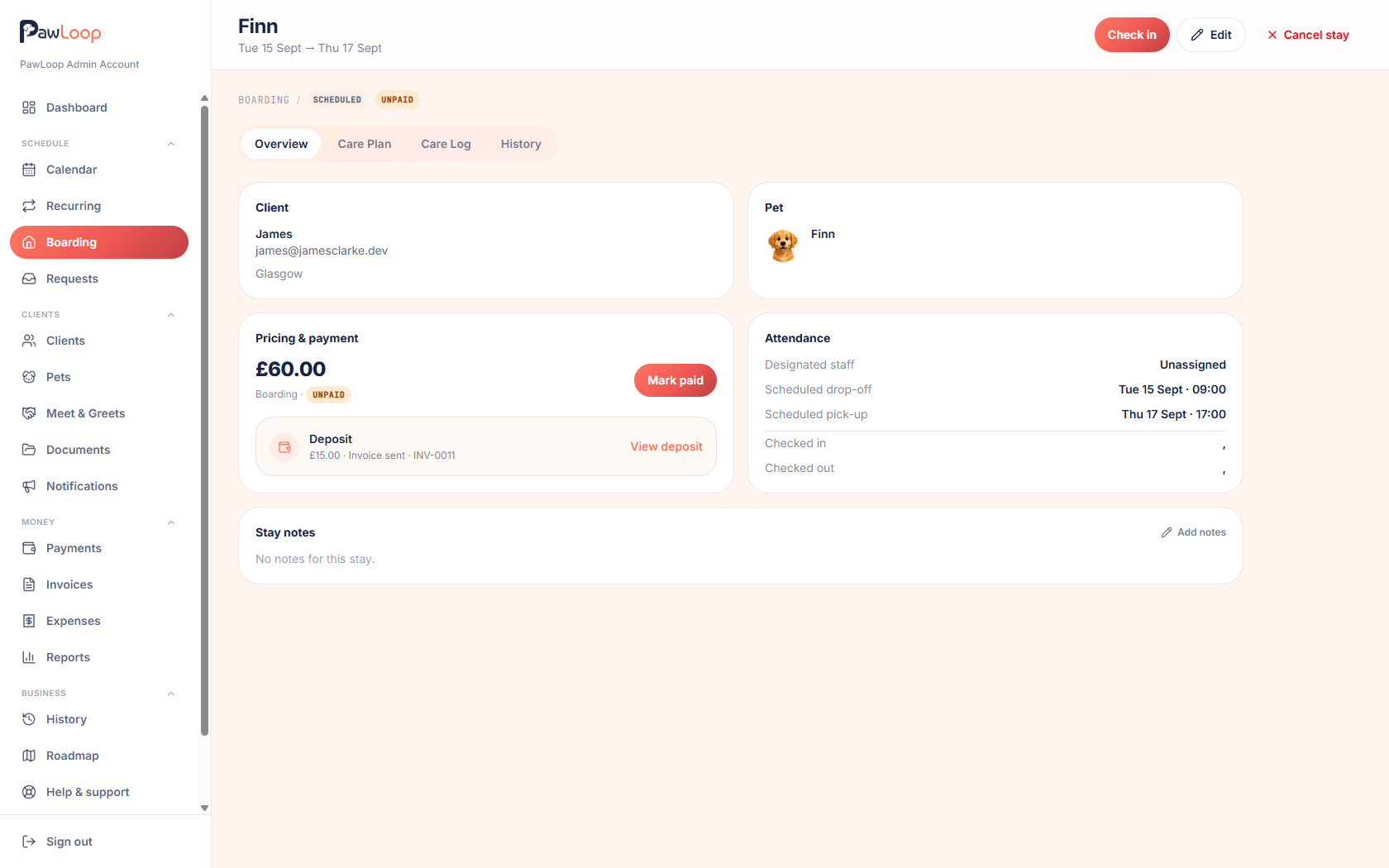
On a walk or other service, the Deposit section sits under the summary. On a boarding stay it sits inside Pricing and payment. Click Take a deposit and PawLoop shows the full price, which setting matched, the suggested amount and a due date worked out from your payment window. Both the amount and the due date can be changed before you save, and if you have no setting saved you simply type the figure you want. Nothing is ever taken automatically: a deposit exists only because you added it.
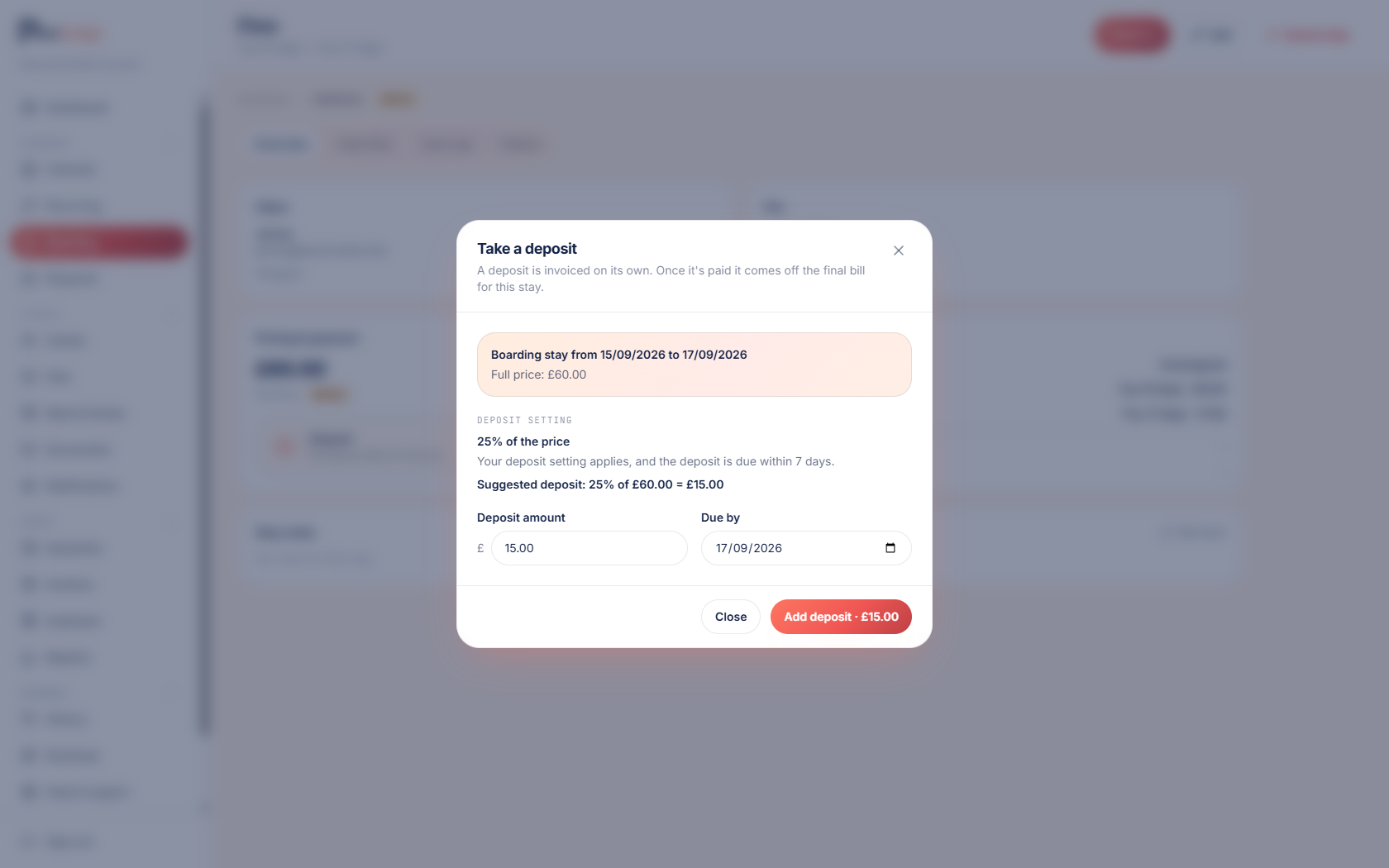
Invoice the deposit on its own
Once a deposit is saved, Generate invoice creates an invoice containing a single deposit line, describing what the deposit is for, and opens it straight away so you can send it, share it or download the PDF. It takes the next number in your normal sequence and behaves like any other invoice. While no invoice exists you can still change the amount or remove the deposit; once an invoice exists you deal with the invoice instead. If you void that invoice, the deposit is freed up again so you can raise a fresh one.
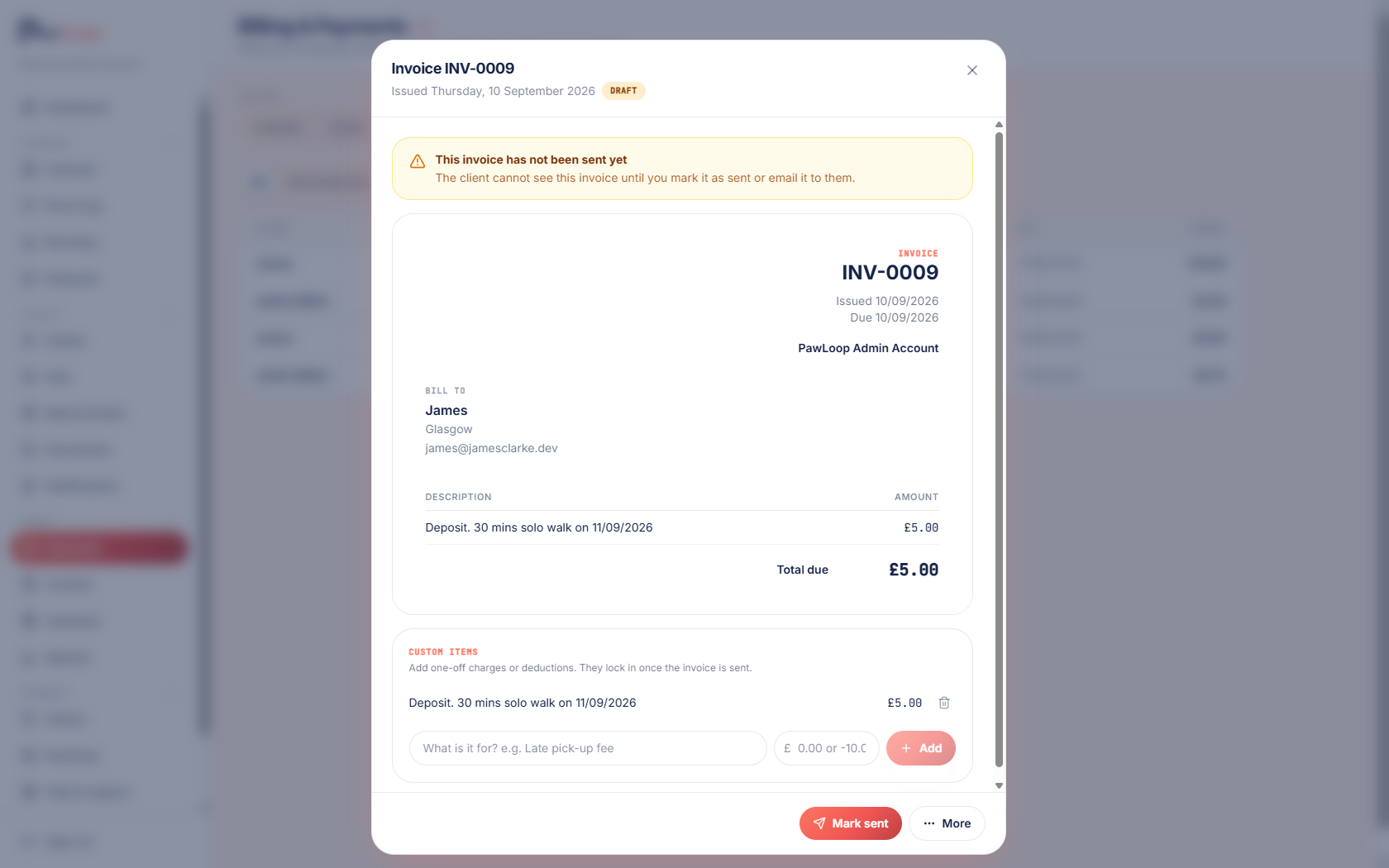
Track every deposit in one place
The Payments page gains a Deposits tab listing every deposit you have taken, with the client, what it is for, the amount, the due date and its status. Filter by no invoice yet, draft, sent, paid or voided. Anything without a live invoice has a Generate invoice action right there, so you can work through them in one sitting rather than opening each booking.
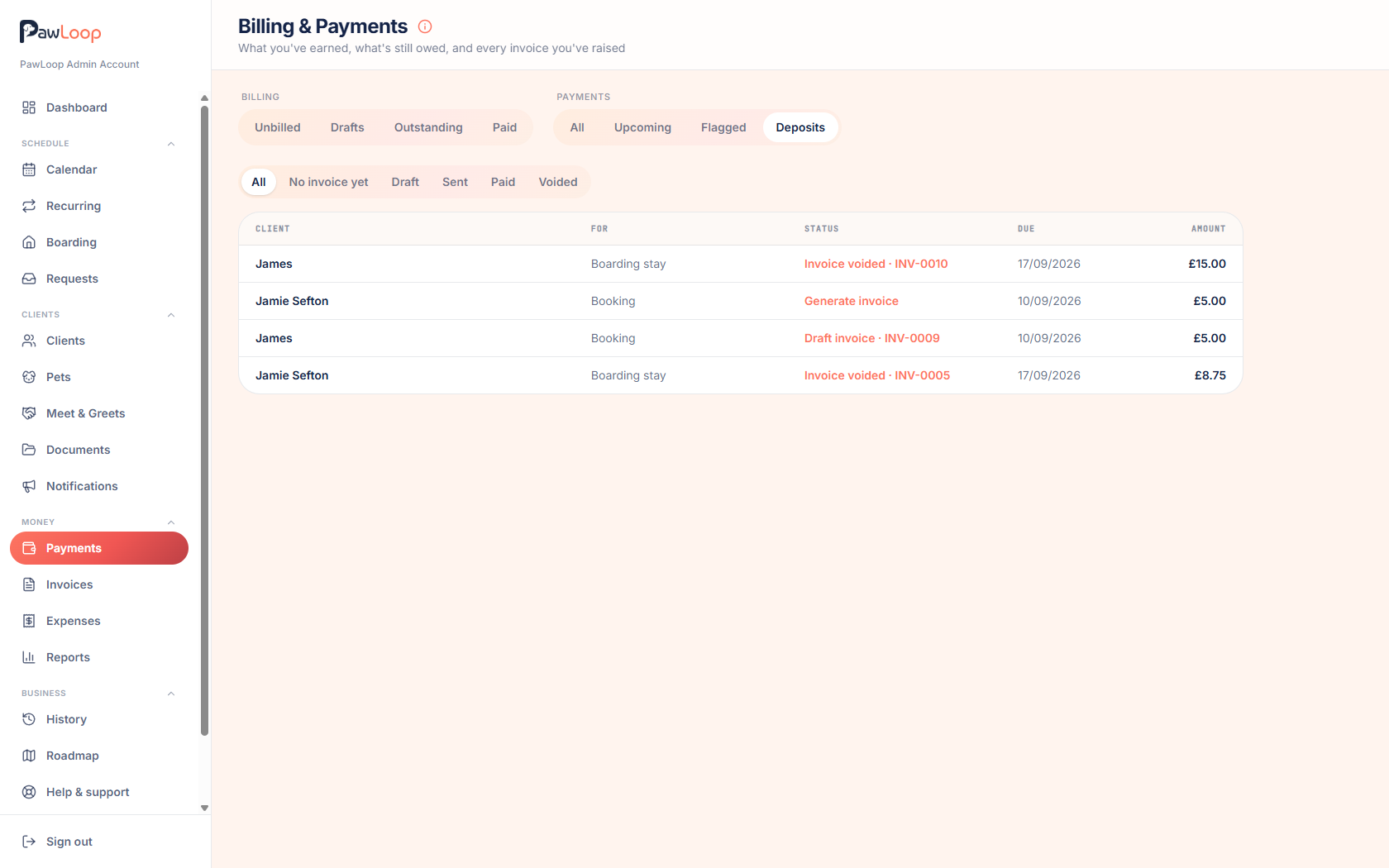
Paid deposits come off the final invoice
When you invoice the booking or stay, whether manually or through automatic billing, PawLoop lists the normal price and then shows a deduction for the deposit already paid, so the client sees the full picture and only owes the balance. The deduction only appears when the deposit invoice is marked as paid. A draft, sent but unpaid, or voided deposit invoice produces no deduction, which keeps your figures honest.
Clients can see it too
If you use the client portal, the deposit and its invoice are visible to the client alongside the rest of their bookings and bills, so there is no confusion about what has already been paid. PawLoop does not chase deposits for you and does not take card payments; an overdue deposit is flagged so you can decide what to do about it.
Deposits questions, answered
Create your free PawLoop account today.
Sign up in minutes and try every feature free. PawLoop starts with a 14-day free trial. Every feature included and no payment card required to sign up. Choose a plan when your trial ends.
Start free trialNo spam. No card. Just a free pass to try PawLoop.