Accounting Exports for dog walkers
Your figures, in the format your books need.
- Export customers, invoices, payments and expenses in layouts built for Xero, QuickBooks and FreeAgent.
- A generic export covers any other system or a spreadsheet-loving accountant.
- Every export is built from the same records as your reports, so the numbers always match.
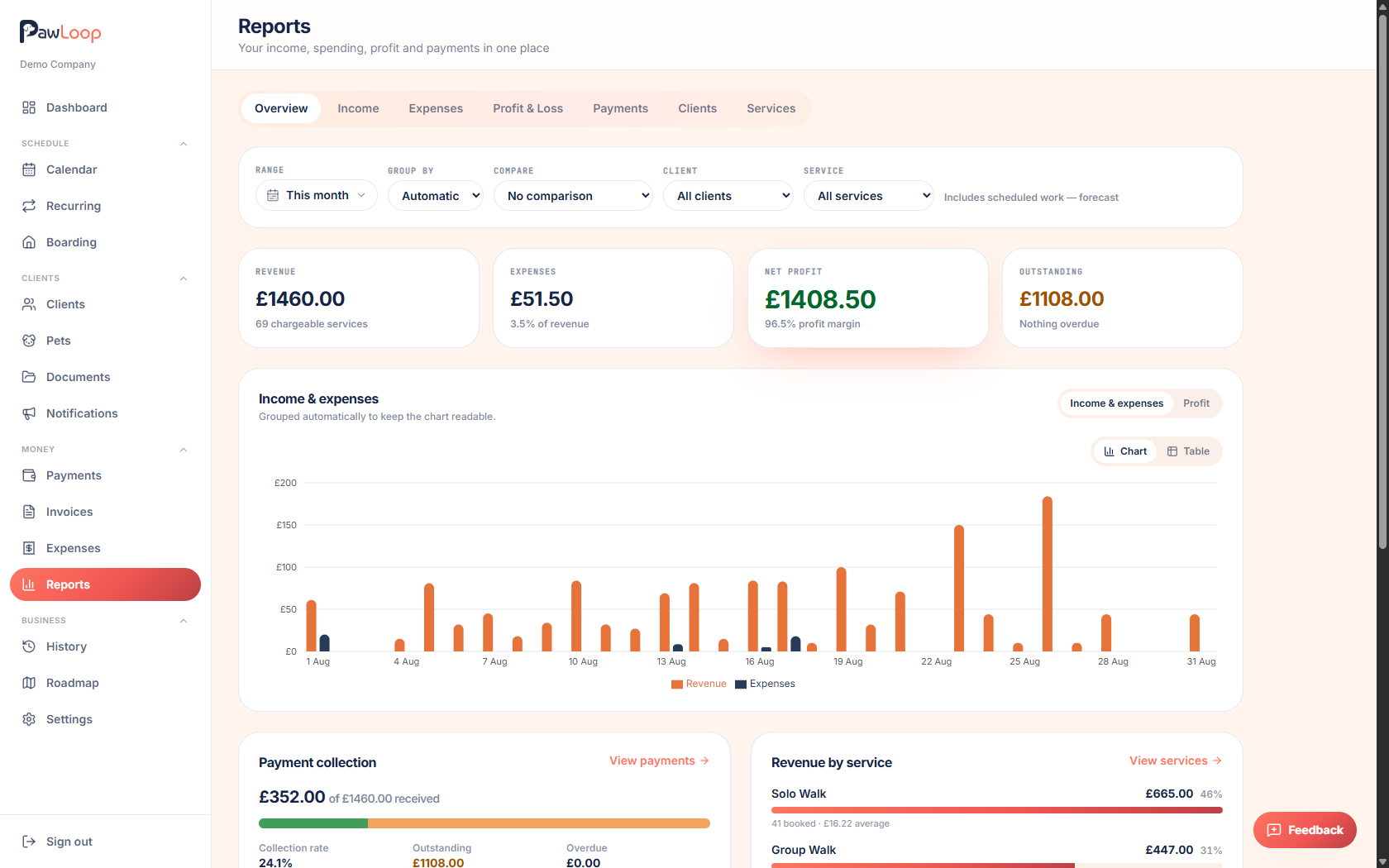
PawLoop already keeps a complete record of every client, invoice, payment and expense. Accounting exports turn those records into files your accounting software can import, so nothing gets typed in twice.
Choose the layout built for your system: Xero, QuickBooks or FreeAgent, each shaped to what that software expects. If you use something else, or your accountant just wants spreadsheets, the generic CSV covers it. Pick a period, choose what to include, check the preview of totals and warnings, and download a ZIP with one CSV file for each type of record.
You can also export only what has not been exported before, so a monthly routine never duplicates anything. Every export is saved in your history to download again later.

Key takeaways
What Accounting Exports does for your business
Built for the big three
Xero, QuickBooks and FreeAgent each have their own export shaped to what that system expects, so the import on the other side just works.
Generic format for everything else
Using something else, or sending figures to an accountant? The generic export gives clean rows anyone can work with.
Numbers that match
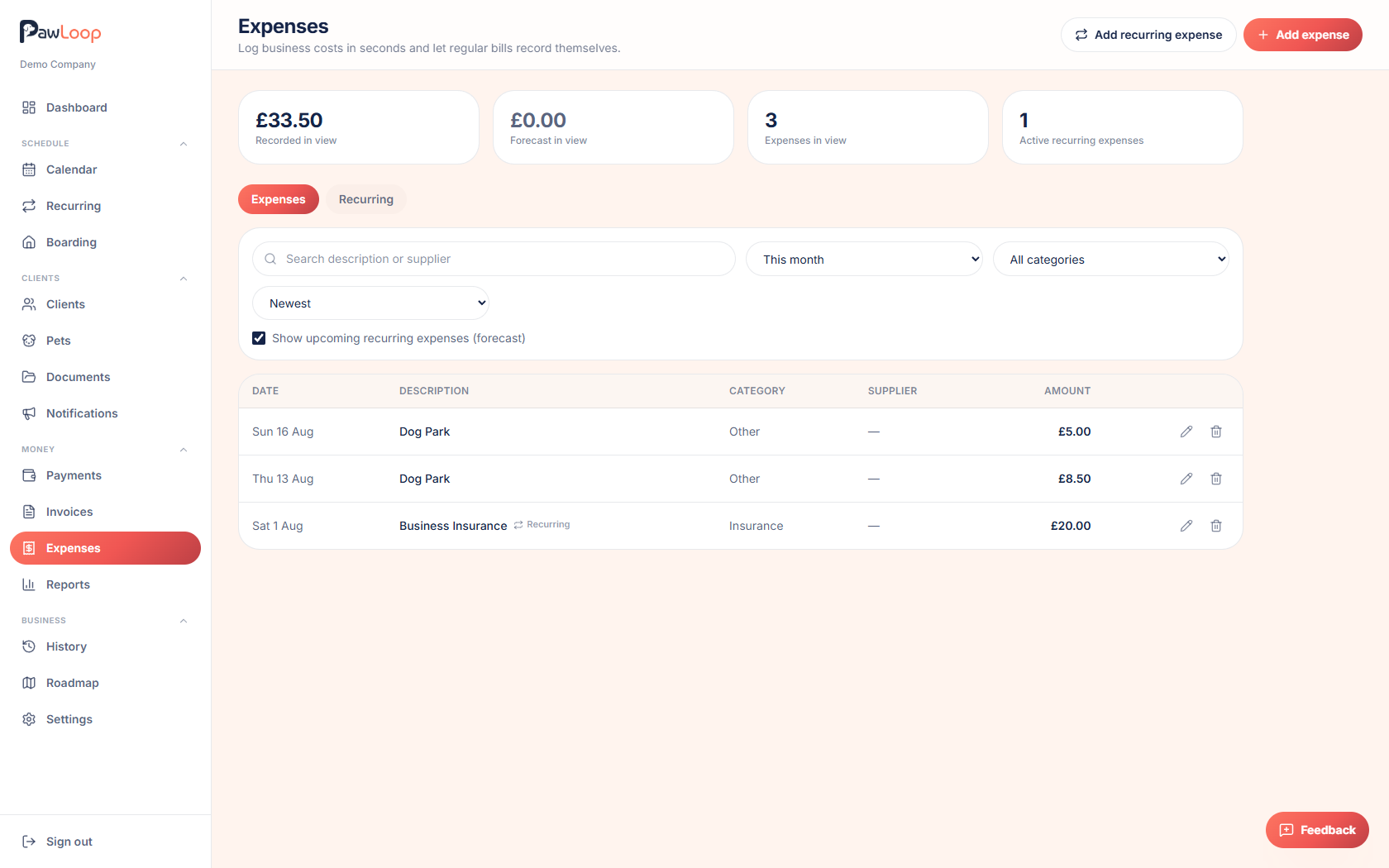
Exports are built from the same client, invoice, payment and expense records as your PawLoop reports, so the books and the app never tell two stories.
Never export twice
Export only what is new since last time, and every export is kept in your history to download again.
Pick your system
Xero, QuickBooks and FreeAgent each have their own layout that matches their import format, plus a generic CSV for anything else. Choose customers, invoices, payments and expenses, and decide whether to include draft invoices, which are left out by default.
Choose the period
Export this month, last month, this quarter, last quarter, the tax year to date or your own dates. Or choose to export only records that have not been exported before, which keeps a regular routine free of duplicates.
Check before you download
Before the file is made you see how many records each part contains, the invoice net, VAT and gross totals, and any warnings worth looking at. Then download a ZIP with a CSV for each part.
Every export kept
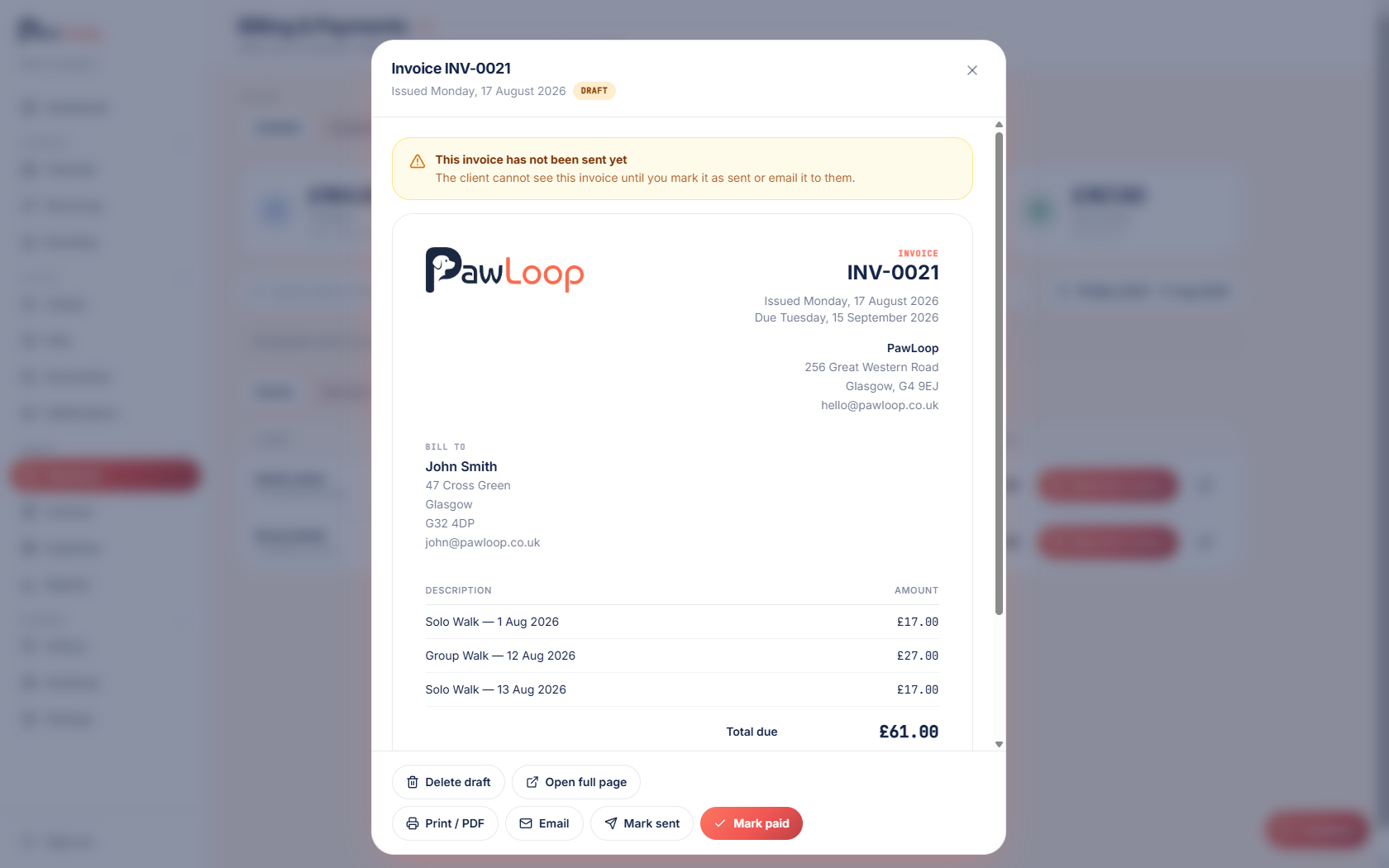
Each export is saved in your history with its period and contents, so you can download the same file again for your accountant without rebuilding it. The figures come from the same records as your PawLoop reports, so the two always agree.
Accounting Exports questions, answered
Create your free PawLoop account today.
Sign up in minutes and try every feature free. PawLoop starts with a 14-day free trial. Every feature included and no payment card required to sign up. Choose a plan when your trial ends.
Start free trialNo spam. No card. Just a free pass to try PawLoop.